
Background Image
Put a picture behind a card, a text box, or a tile: a moon in the corner of an intro card, a leaf next to a heading, a paper texture behind a whole panel. You can place it exactly where you want, drag it into position, show only the shape of the picture, and even ask ACE AI to do it for you.
A 70-second walkthrough: upload, size, position, hide the white box, drag, and ACE AI.
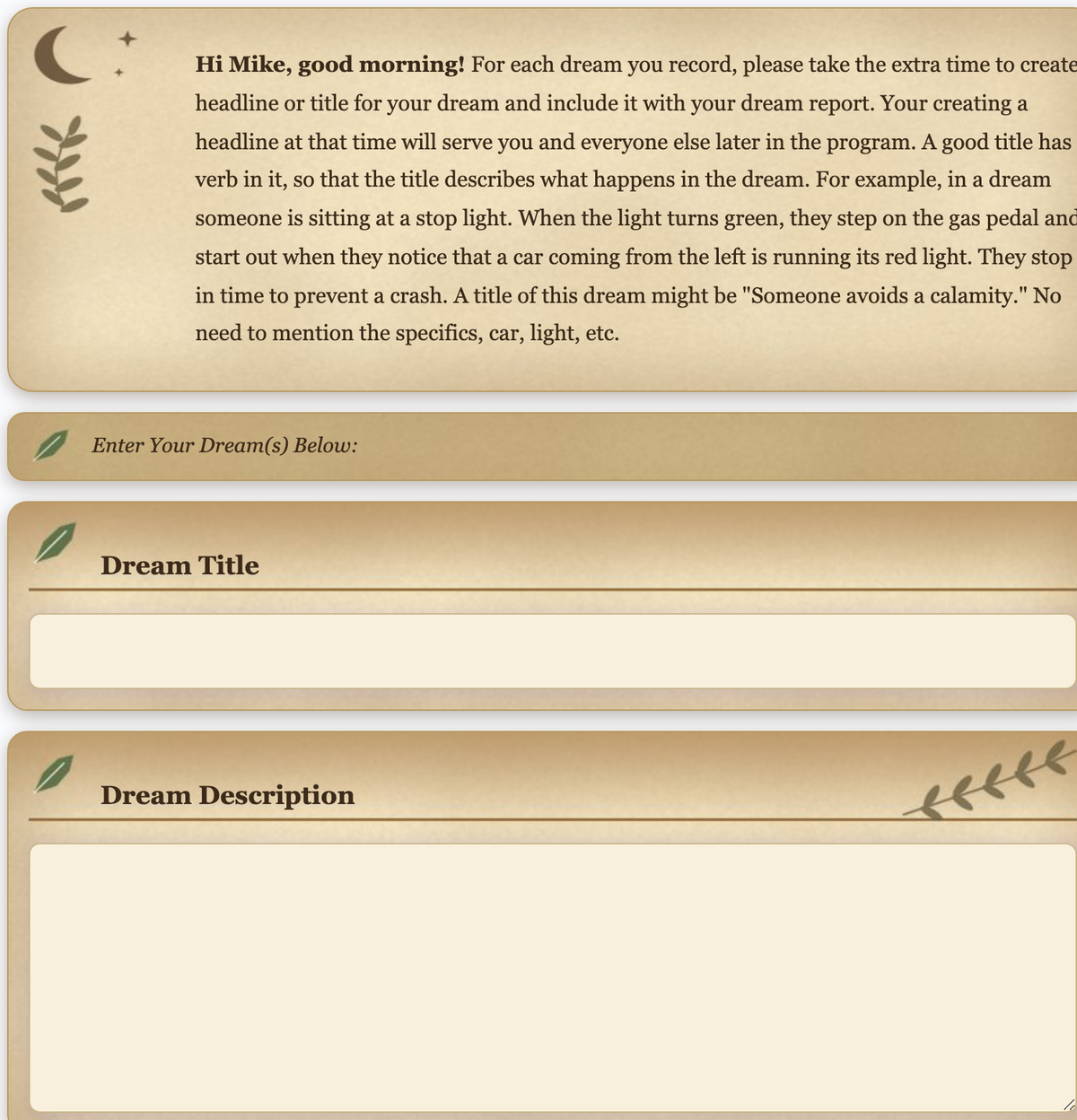
This is how the finished page looks to participants in the published app. Every ornament is a background image.
Where it works
Background images are available on these four elements:
| Element | What you can put a picture behind |
|---|---|
| Info | The whole Info panel |
| Tile | The tile, behind everything inside it |
| Text Input | The panel around the label and field, and/or the typing field itself |
| Text Area | The panel around the label and field, and/or the typing area itself |
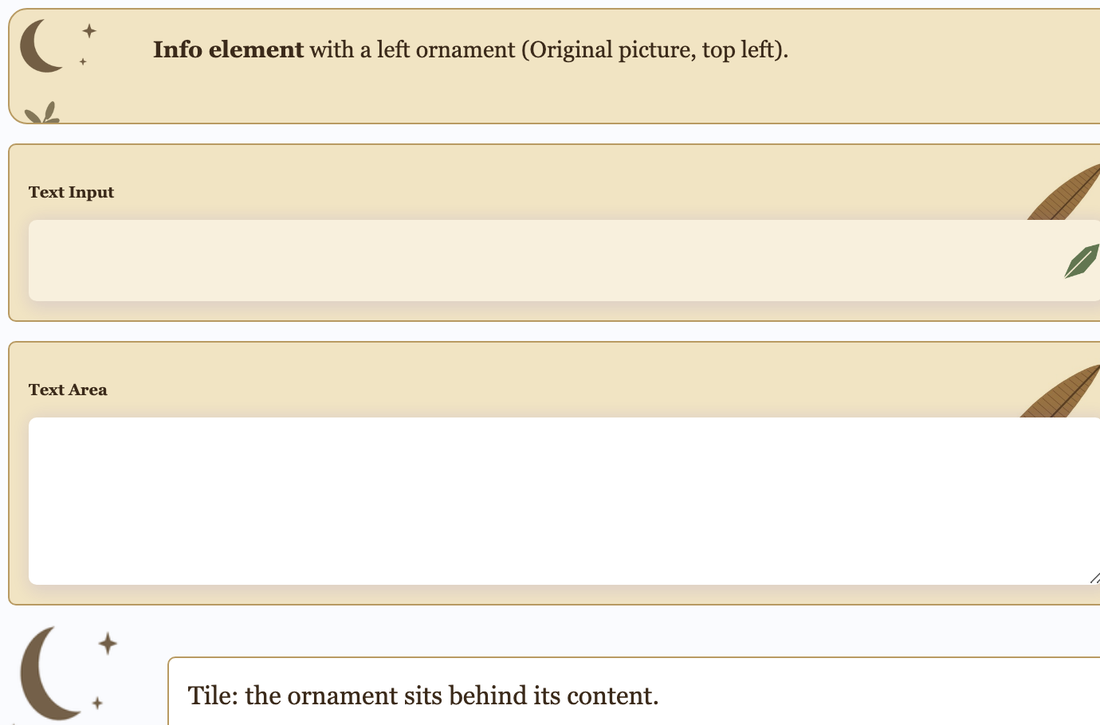
For any other element the Background Image row does not appear.
Add a background image
- Click the element on the canvas so it is selected.
- In the right panel, stay on the Element tab and open Color.
- Under Container, find Background Image and click Upload. Choose a picture from your computer.
The picture appears behind the element straight away. Text Input and Text Area have a second Background Image row under Input, which puts the picture behind the typing field itself instead of the whole panel.
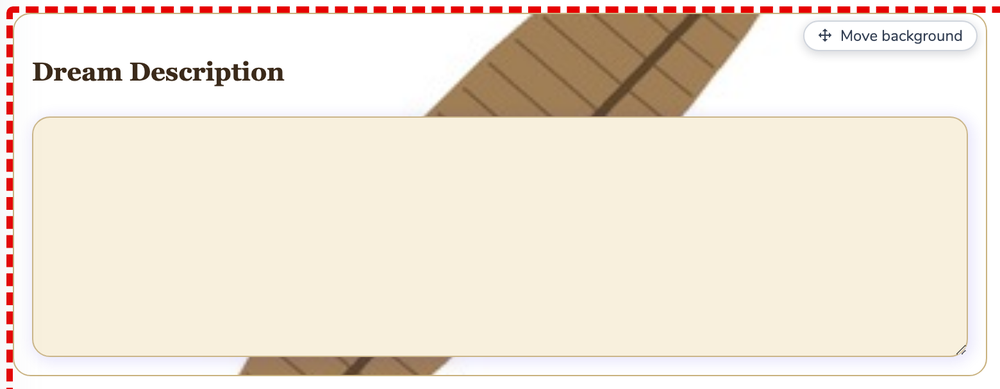
Tip: A PNG with a transparent background gives the cleanest result. If your picture has a white box around it (like the feather above), use Hide white background.
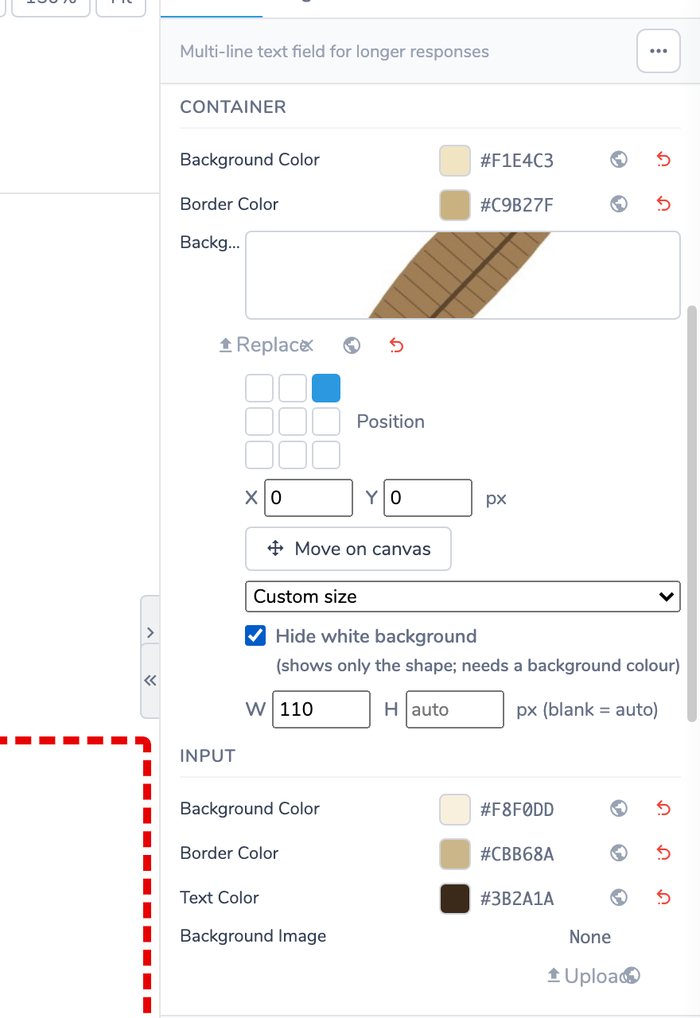
The editor controls for a picture, from top to bottom:
Choose how the picture fills the box
Use the drop-down under the position grid:
| Choice | What it does |
|---|---|
| Fill (crop to fit) | The picture covers the whole box. The edges that do not fit are cropped. Best for textures and photos. |
| Fit inside | The whole picture is shown, with empty space where it does not match the box shape. |
| Stretch | The picture is stretched to exactly the box shape. It can look distorted. |
| Original size | The picture is shown at its own size. |
| Custom size | You type a W (width) and/or H (height) in pixels. Leave one blank and it follows the picture's proportions. Best for icons and ornaments. |
| Tile (repeat) | The picture repeats like wallpaper. Best for small patterns. |
For a moon, a leaf or a corner ornament, choose Custom size and type a width such as 110.
Place it: the position grid and X / Y
The 3 × 3 grid snaps the picture to a corner, an edge, or the centre. Clicking a square also resets X and Y to 0, so the picture lands exactly there.
Below the grid, X and Y move the picture away from the corner or edge you picked, in pixels:
- Anchored to the left / top, a positive number moves the picture right / down.
- Anchored to the right / bottom, a positive number moves it inward, away from that edge.
- Anchored to the centre, a positive number shifts it right / down.
Negative numbers go the other way.
Move it by dragging
You can also drag the picture into place instead of typing numbers.
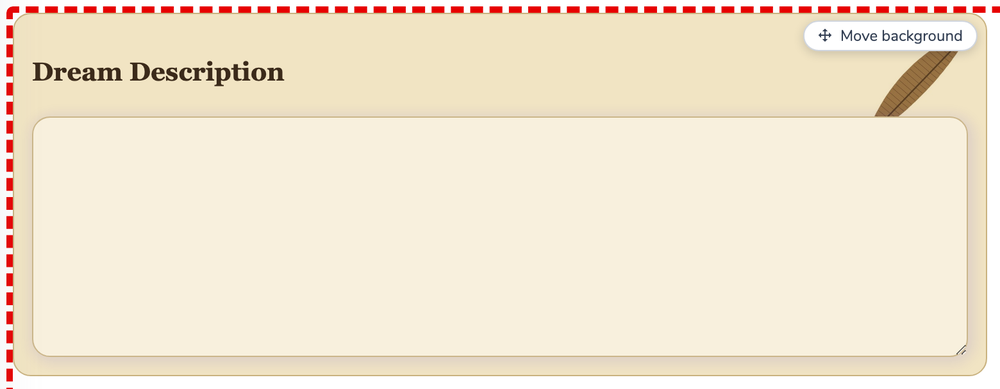
- Select the element. A Move background button appears on the canvas at the element's top right.
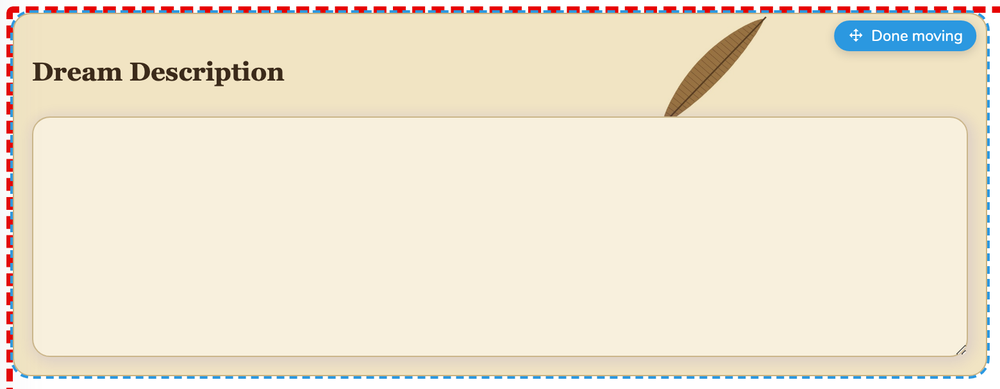
- Click it. The element gets a blue dashed outline and the cursor becomes a move cursor.
- Drag inside the element. The picture follows your mouse, and the position is saved when you let go.
- Click Done moving (or press Esc) to finish.
While you are moving:
- Arrow keys nudge the picture by 1 pixel. Hold Shift to nudge by 10.
- Hold Shift while dragging to lock movement to one direction.
- It works at any zoom level: the picture moves exactly as far as your mouse does.
The same action is available as Move on canvas in the Color tab, for either the Container or the Input picture.
If the button is greyed out: the picture uses the Stretch fit, so it already fills the whole box and there is nothing to move. Choose Custom size or Original size first.
Show only the shape: Hide white background
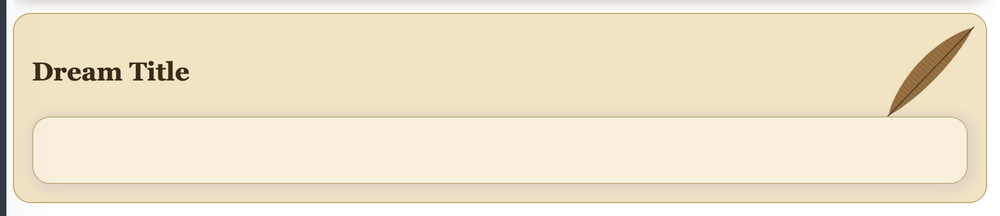
A picture saved with a white box around it normally shows that box. Turn on Hide white background and the white takes on the Background Color of the same group, so only the shape (a feather, a leaf) is visible.
| Before | After |
|---|---|
| 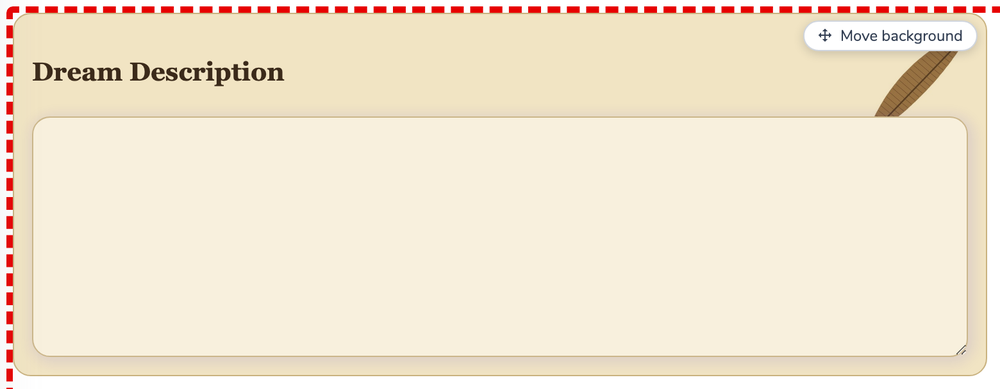 |
Things to know:
- It needs a Background Color on the same group (for example parchment
#F1E4C3). With a transparent background there is nothing for the white to blend into. - It hides white only. For other colours around a shape, use a picture saved with a transparent background instead.
Container or typing field (Text Input and Text Area)
These two elements have two groups in the Color tab:
- Container: the whole panel, including the label. Use this for ornaments and decorations around the field.
- Input: the typing field itself. Use this for something inside the field, like a small icon at its right edge.
If you ask ACE AI for "the panel" or "the card", it uses the Container. It uses the typing field only when you clearly say so ("inside the input", "the typing box").
Make room for the picture
A background picture sits behind the content, so text can run over it. To keep text clear of an ornament, add padding on that side in the Dimensions tab. For a moon that is 90 px wide in the top-left corner, a left padding of about 130 keeps the text beside it.
Set it once for every element of a type
Next to Background Image there is a globe button. It sets the current picture, size and position as the default for every element of that type in the project (for example every Text Area), replacing any individual settings those elements have for it.
The curved-arrow button resets the element to the default, and the × next to the picture removes it.
Ask ACE AI
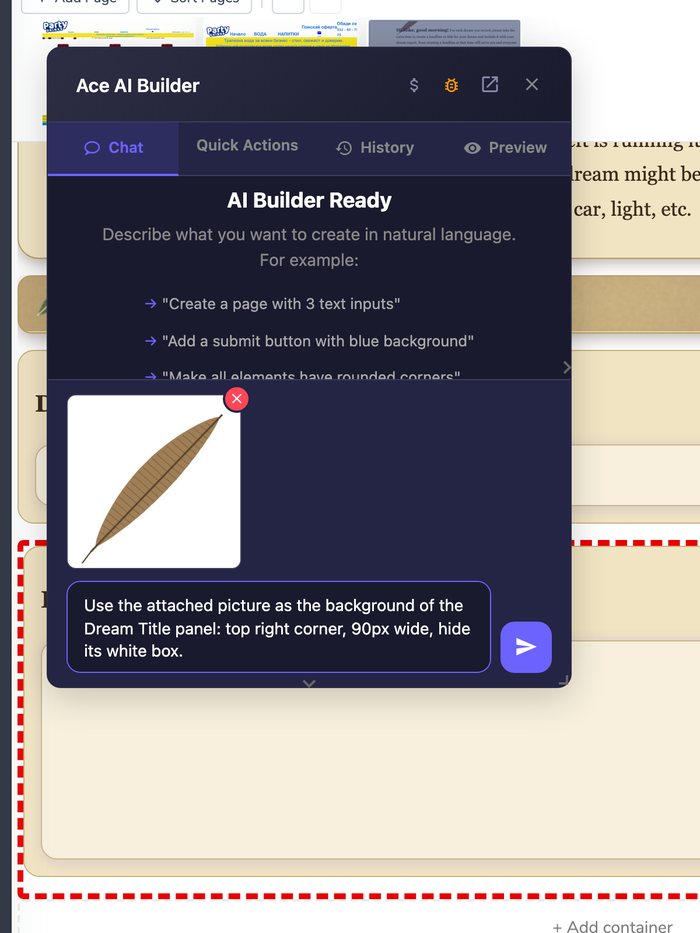
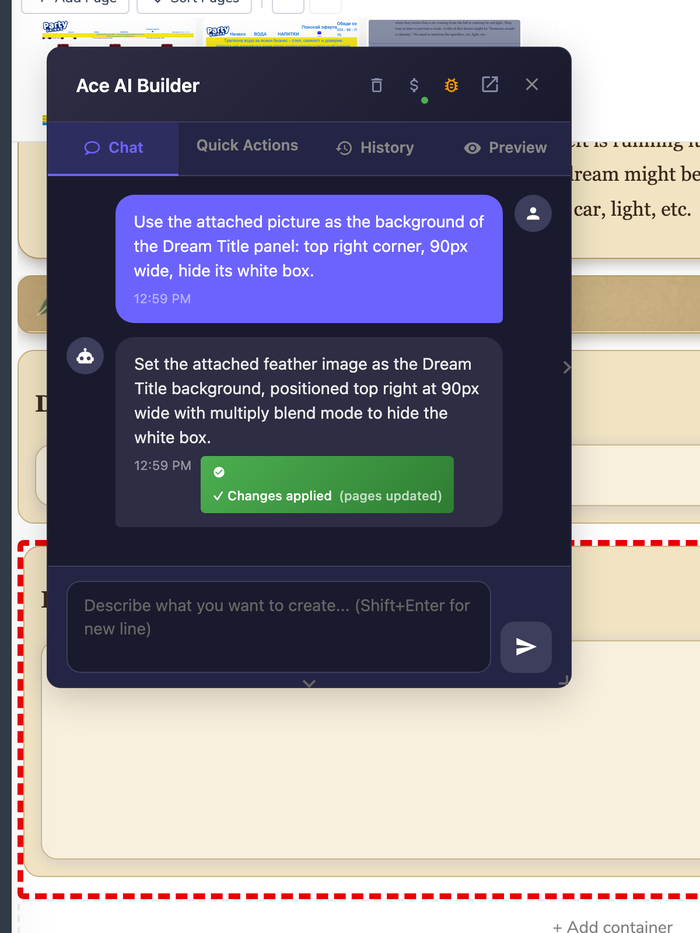
ACE AI can add, move, resize, and remove background images for you. Describe what you want in plain words, and attach a picture to the chat by pasting it.
Examples that work:
| Say this | What ACE does |
|---|---|
| (attach a picture) "Use the attached picture as the background of the Dream Title panel: top right corner, 90px wide, hide its white box." | Stores your picture, sets the size and position, and fixes the white box. |
| "Use the picture I uploaded last as the background of the first Info panel, top left, 80px wide." | Looks through the pictures you have already uploaded and uses the most recent one. |
| "Move the feather in the Dream Description panel 20px to the left." | Changes only the position and keeps the rest. |
| "Make the feather picture 90px wide." | Changes only the size. |
| "Use https://example.com/img/bg.png as the background of the first Info panel." | Uses the link exactly as you typed it. |
| "Remove the background picture from the Dream Description panel." | Clears the picture. |
What ACE will not do, and what it does instead:
- A picture you only describe. If you ask for "a moon" and have no picture of one, ACE asks you to attach it. It never picks a random picture or invents an address. If an earlier upload has a clearly matching file name (such as
moon.png), it may use it and tells you which file. - Other elements. Buttons, images, and everything outside the four elements above do not support background images, and ACE says so.
- More than one picture in the same box. Each box holds one picture. ACE suggests using two boxes (for example the Tile and the Info inside it).
- Effects. Opacity, rotation, and filters do not exist for background images.
Anything ACE writes is checked before it is applied: only plain picture links are accepted, and sizes and positions are limited to the choices on this page.
Good to know
- One picture per box. For a left icon and a right ornament, use two boxes.
- Keep files small. Large pictures slow the page down for participants. A few hundred KB is plenty for an ornament.
- Publishing. Pictures show in the editor immediately. They go live with the rest of your changes when you publish: see Publishing.
- On the published page, Info, Tile, Text Input and Text Area all draw their background pictures, including the typing field's own picture and the white-box fix.