Add Your Organization
Once you’ve successfully registered and logged in, it’s time to set up your organization profile.
From the top menu, navigate to:
Dashboards → Account → Admin 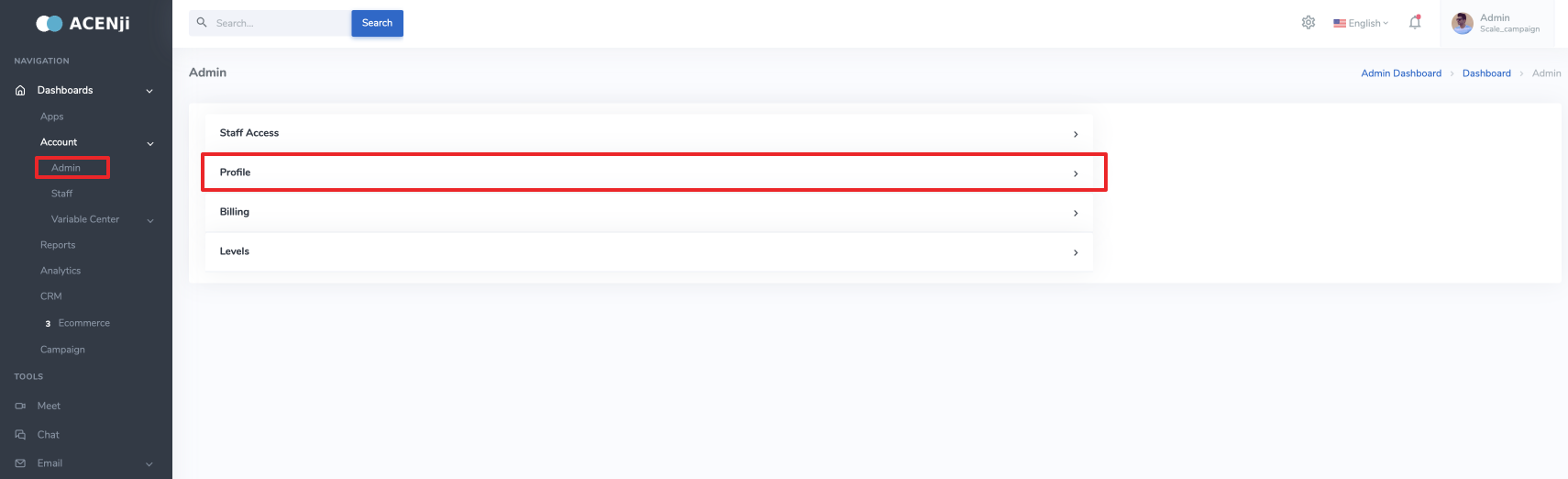 You’ll see four tabs: Staff Access
Profile ✅
Billing
Levels
This step focuses on the Profile section.
🖼️ Upload Organization Details
Fill in the required information: 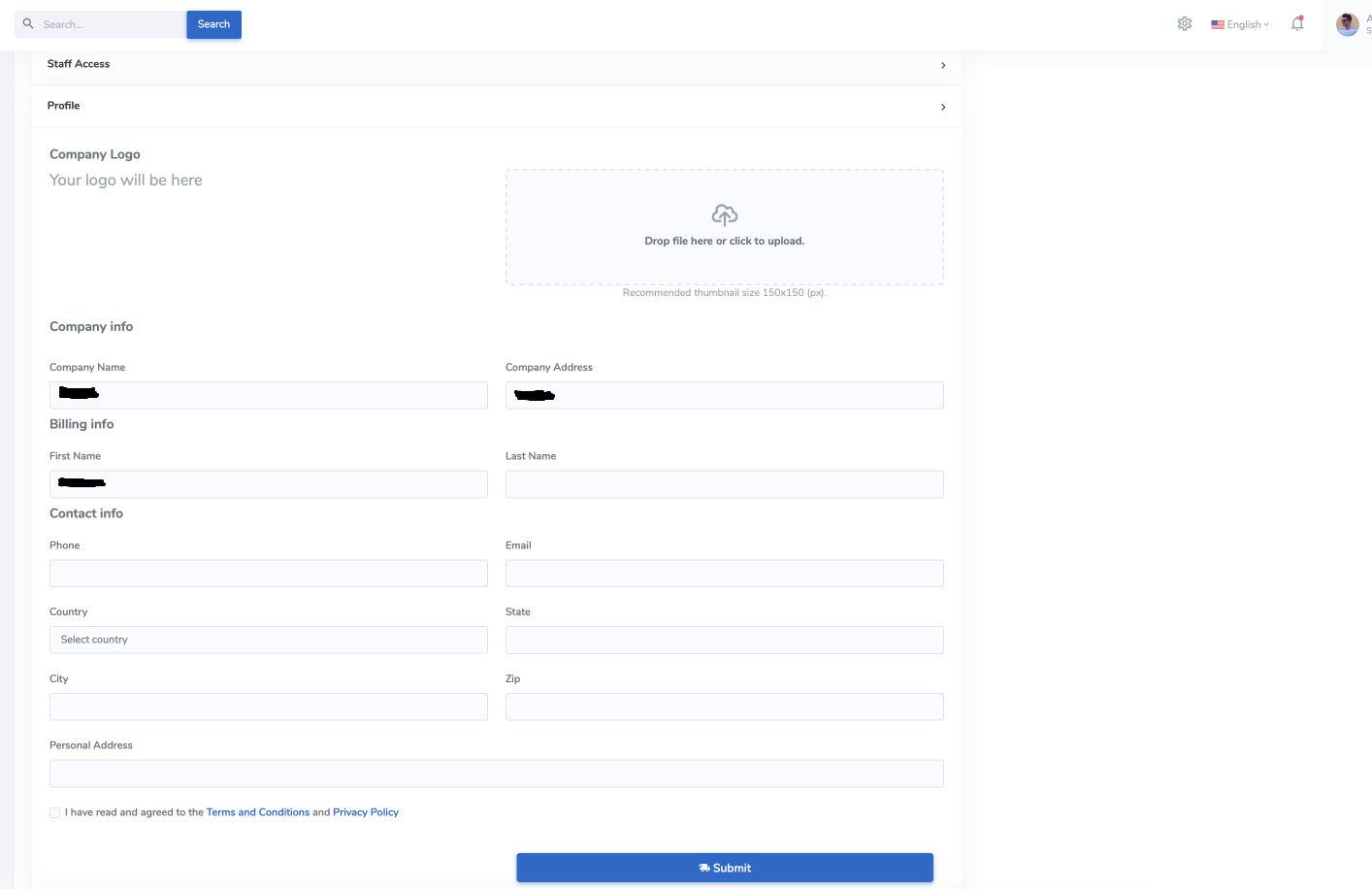 Company Logo – Upload a high-resolution logo.
First Name / Last Name
Phone / Email
Country / State / City / ZIP / Address
📜 Don’t forget to check the box to confirm you’ve read and agreed to the
Terms and Conditions
✅ Save Your Profile
Click Submit to save your organization details. 🔐 Your data is securely stored and used only for account and billing purposes.
Need Help?
Start your journey at ACENji's NoCode Platform — accessible on both web and mobile browsers. Our intuitive interface helps you ease into building apps without needing any prior technical experience. If you have any questions or need help at any point, our team is here for you.
Feel free to reach out to us — we’re happy to assist.

If you have any questions, please don't hesitate to contact us.
Questions?
If you have any questions, please don't hesitate to contact us.
Alternatively, you can submit an issue on this platform.
Useful Links:
ACENji Sign Up - https://help.acenji.com/#/../../getting-started/signup/index
ACENji Elements - https://help.acenji.com/#/./elements/index
Quick Start Conditional Logic - https://help.acenji.com/#/./conditional-logic/quick-start/index