👥 Add Users
Managing users in ACENji is simple and powerful. Whether you’re onboarding a few individuals or importing an entire team, the platform gives you full control over access and roles.
👤 User Roles in ACENji
ACENji supports the following user roles, each with specific responsibilities and access levels:
Platform Assign User – Assigned by an admin, has access to the full ACENji platform and multiple projects.
Project Only User – Assigned by an admin, access is limited to specific projects only (apps).
Self Registered User – Registers independently (web or mobile), access is scoped to the project they registered for.
Guest User - No registration required. No platform account; interacts with a project directly as a public participant.
Creator User – The original account owner who creates the ACENji account. Has the highest level of privileges for managing the platform and apps under that account.
Admin User – Full administrative control over the workspace. Elevated access; sees more options on builder and config pages. Can assign other users with their roles.
Manager User – Oversees teams, workflows, or departments. Project-level control role (planned).
Staff User – Basic internal user with limited access. Usually, general employee-level access.
Staff Deny – Denied access: may still appear in lists but cannot access the platform.
🧩 You can mix and match user types based on your organization’s needs.
➕ How to Add Users?
Navigate to: Dashboards → Account → Admin → Add Users You’ll find two options to manage user onboarding:
1. Add Single User
Use the manual form(+ button) to invite individual users. 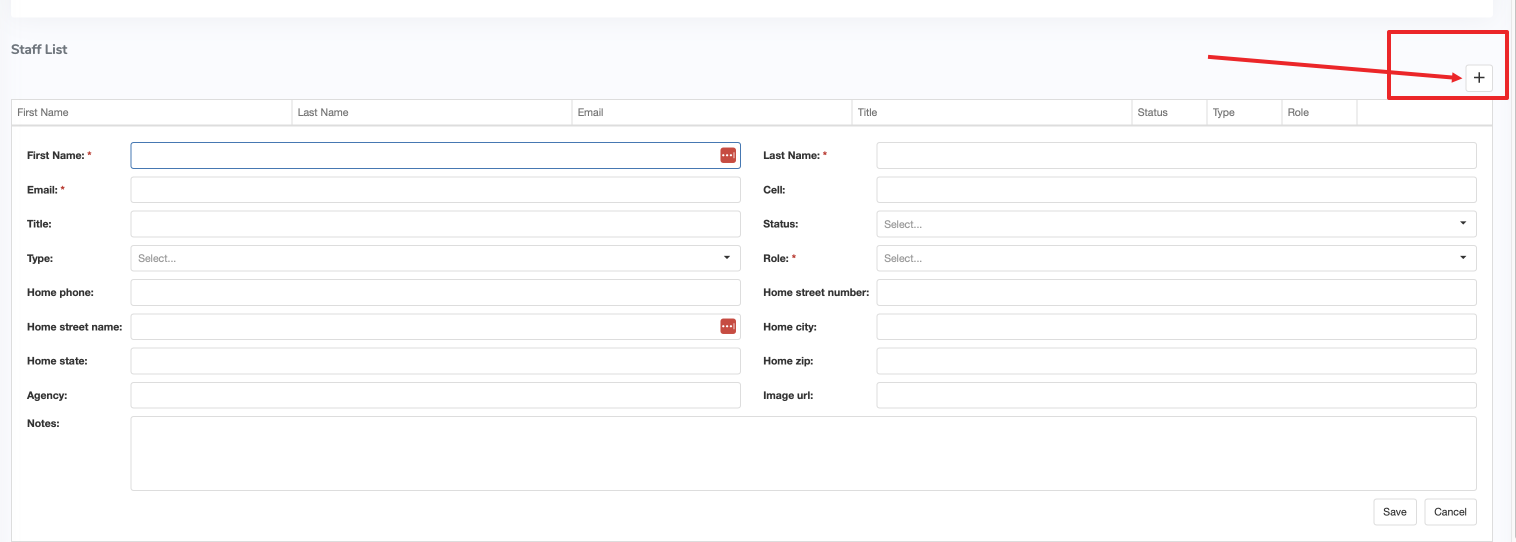 Fill in:
1.1 First Name / Last Name
1.2 Email
1.3 Select User Type
1.3 Assign to Group or App (optional)
1.4 Status (Active / Inactive)
1.5 Click Submit to send the invite.
2. Add Bulk Users
For onboarding multiple users at once, use the bulk import feature.
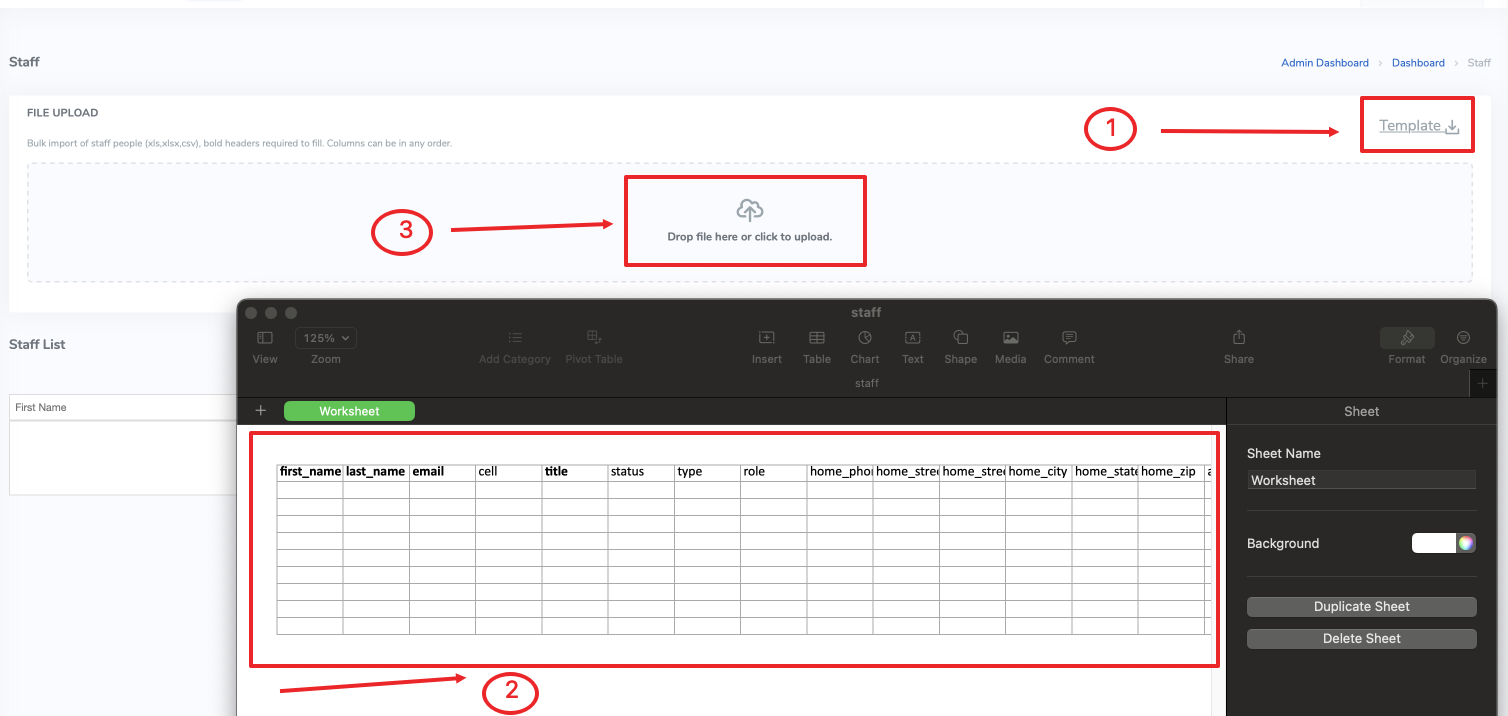 Steps:
2.1 Download the Excel template as XLSX file
2.2 Fill in user data
2.3 Upload the Excel back into the system
2.4 Confirm and Submit
📥 Bulk import supports assigning user types and groups directly via the Excel.
📘 Want to define internal permission levels within the organization? Learn first how to apply permission levels to streamline access across your platform.
Even if you haven’t created any apps yet, you can still define global user permissions based on their role.
Need Help?
Start your journey at ACENji's NoCode Platform — accessible on both web and mobile browsers. Our intuitive interface helps you ease into building apps without needing any prior technical experience. If you have any questions or need help at any point, our team is here for you.
Feel free to reach out to us — we’re happy to assist.

If you have any questions, please don't hesitate to contact us.
Questions?
If you have any questions, please don't hesitate to contact us.
Alternatively, you can submit an issue on this platform.
Useful Links:
ACENji Sign Up - https://help.acenji.com/#/../../getting-started/signup/index
ACENji Elements - https://help.acenji.com/#/./elements/index
Quick Start Conditional Logic - https://help.acenji.com/#/./conditional-logic/quick-start/index