
🚀 Publish Management
The Publish Management screen is where you control live deployments for your website and safely roll back to earlier versions when needed.
Every publish creates a deployment record in a history grid, so you can always see when a version went live, who published it, and whether it succeeded.
✅ What Publish Management Does
With Publish Management, you can:
- Publish to Live with a single click
- View a full Publish History of deployments
- Roll back your working copy to any prior published version
- Require an explicit Publish to Live action before anything changes on production
🧭 Where to Find It
Navigate to:Dashboards → Website Builder → Publish Management
🗂️ Publish History Grid
Each row in the grid represents one deployment (publish) and includes:
- Date – the date and time the publish occurred
- Action – currently shown as Publish
- Admin – the user who performed the publish
- Result – whether the publish was successful
- Actions – a dropdown menu with available actions (e.g., rollback)
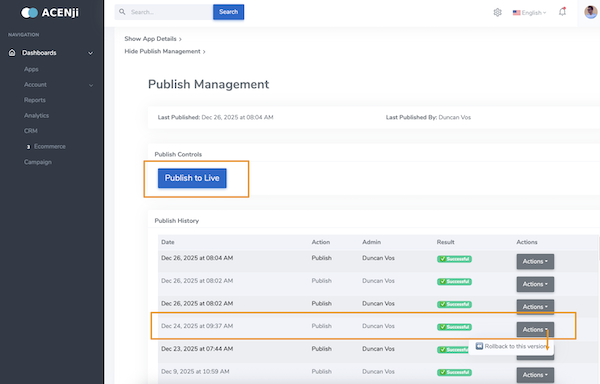 Figure 1: Publish Management with Publish History and Rollback option
🚀 Publish to Live
When you are ready to deploy your current changes to production:
- Open Publish Management
- Click Publish to Live
- The deployment will appear as a new row in the Publish History grid
Publishing creates a new version entry, so you can always return to it later.
🔁 Rollback to This Version
In the Actions column, each deployment row includes an action:
- Rollback to this version
What rollback does
Rollback does not immediately change what is live.
Instead, it:
- Updates your working copy to match the selected historical version
- Lets you review/edit the restored state if needed
- Requires you to click Publish to Live to deploy it back to production
Rollback workflow (recommended)
- In Publish History, find the version you want
- In the Actions dropdown, select Rollback to this version
- Confirm your working copy looks correct
- Click Publish to Live to push that restored version to production
This two-step approach prevents accidental production changes and keeps deployments intentional.
🔗 Next Steps
- Learn how tiles behave across deployments in Template Tiles
- Understand safe change management in Tile Instances
❓ Need Help?
If you have any questions, please don't hesitate to
contact us.
Alternatively, you can submit an issue on our
GitHub platform.