
🔗 Card Link Event
The Card Link Event allows you to navigate from one page (card) to another when a user interacts with an element.
It’s most commonly used with buttons, but any element — including images, tiles, or icons — can trigger it.
ACENji does not limit which element can use which event. Events are completely flexible, and it’s up to the no-code designer to decide what makes sense.
📝 Concept
Think of a Card Link as a page-to-page navigation action.
For example:
You’re on the Home page (Card 1) and want to navigate to the Product page (Card 2).
You place a “Product” button on the Home page, wire it with a Card Link Event, and when the user clicks the button at runtime — they’re taken to the Product page.
🪄 Adding a Card Link Event
- Select the element (e.g., button) on your current page.
- Open the Floating Design Panel and go to the Events Tab.
- From the Available Events, drag the Card Link event into the Perform an Action section on the left.
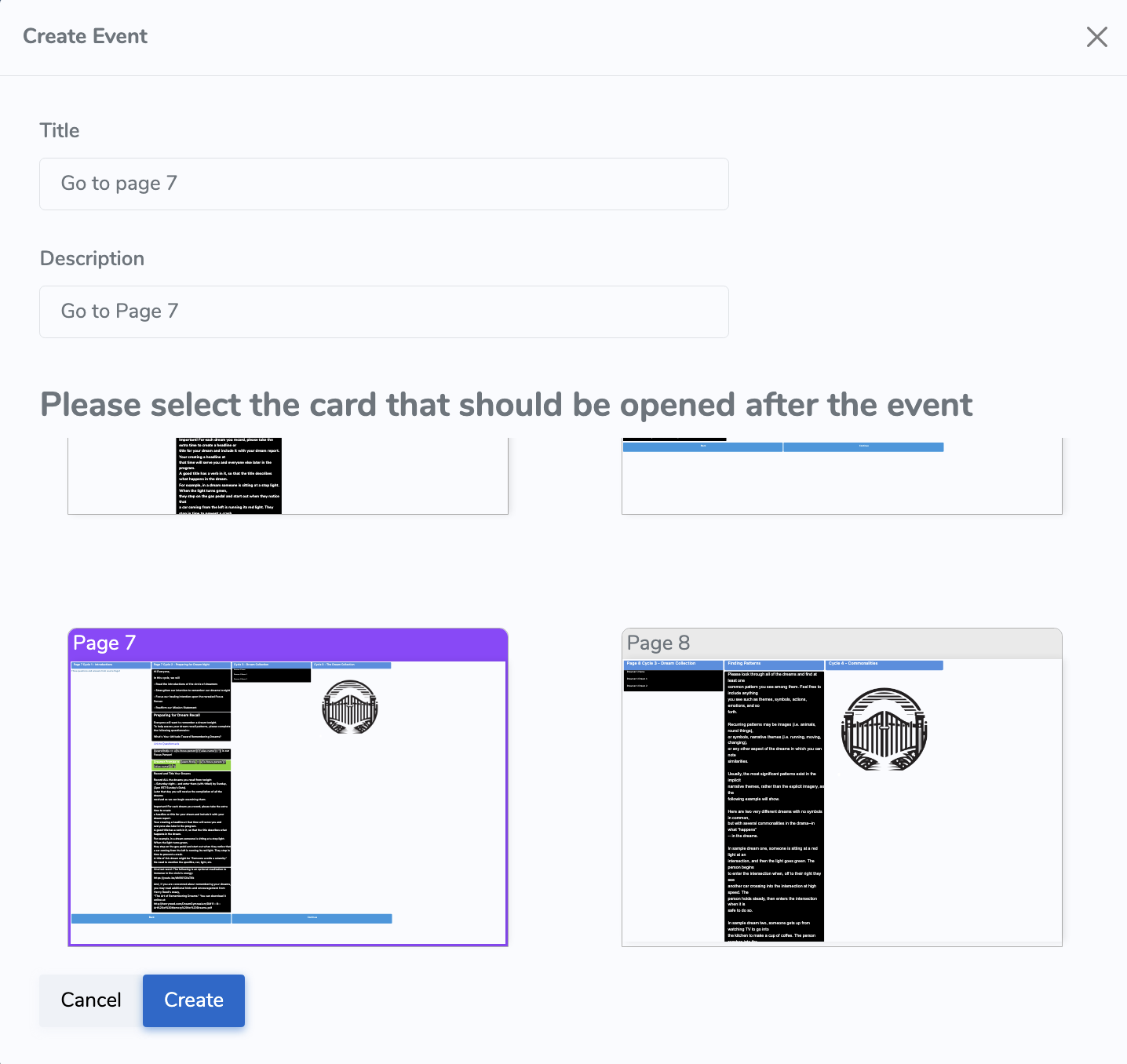
- A properties window will open, where you can configure:
- Title — internal name to help you identify the event.
- Description — internal notes to explain the purpose of the event.
- Destination Card — visually select the page (card) you want to navigate to by clicking on it.
📝 The Title and Description are only visible to creators inside the design panel — they are not shown to end users.
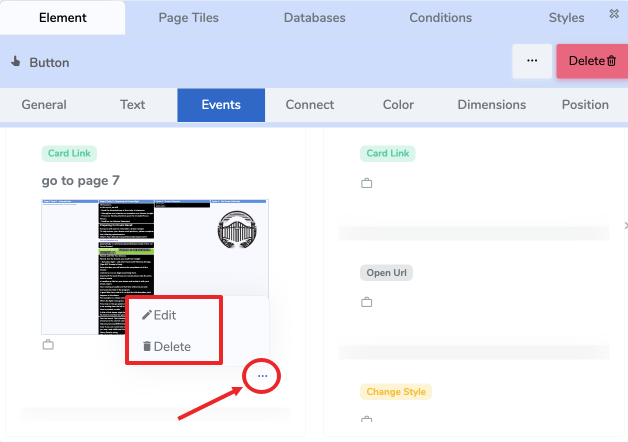
- Click Save.
The event will now appear in the Perform an Action list.
✏️ Editing or Deleting
Once the Card Link event has been created, you can manage it from the Perform an Action section:
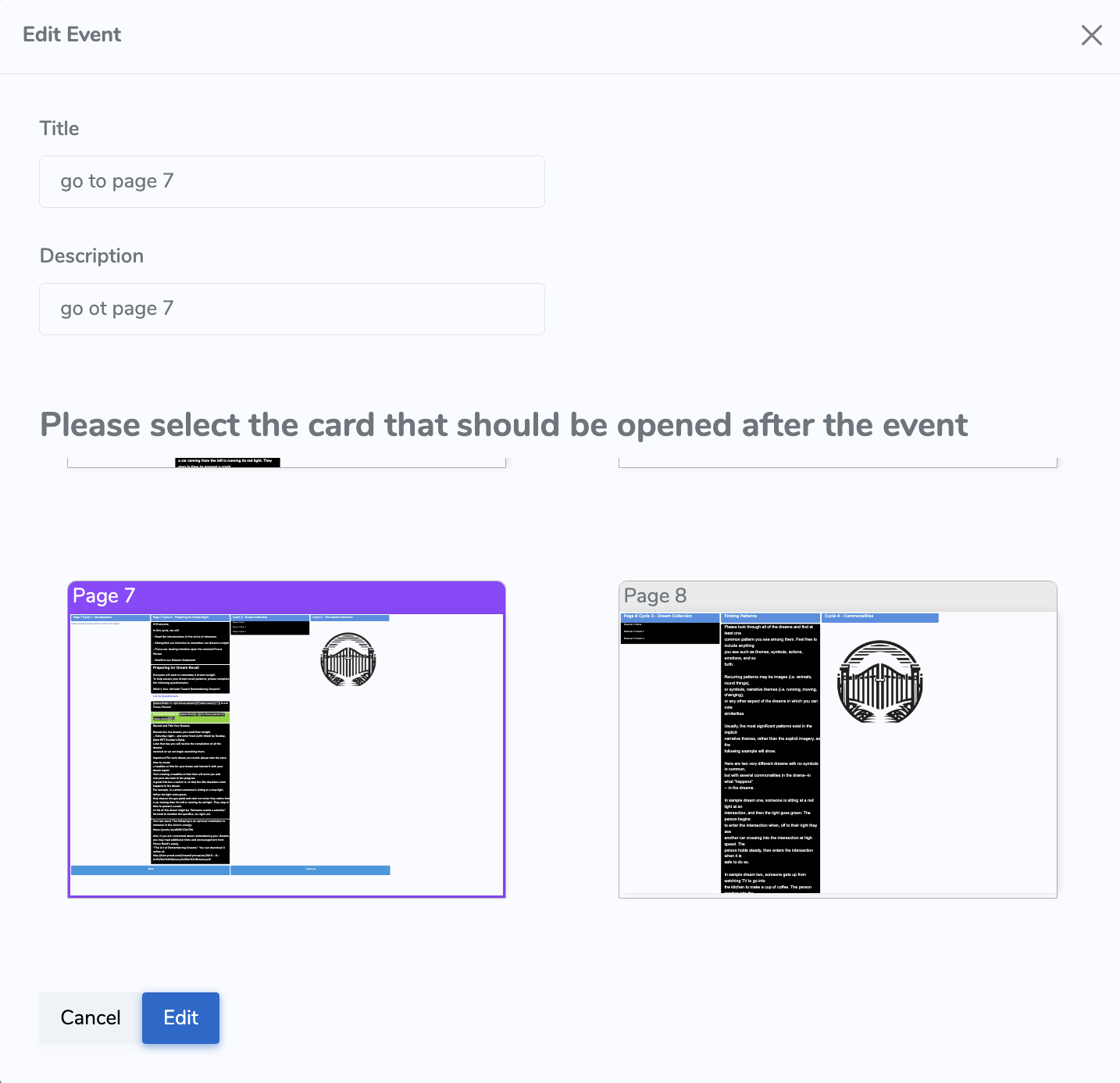
- Click the three dots (⋯) next to the event to:
- ✏️ Edit — reopen the properties window and change Title, Description, or Destination Card.
- 🗑️ Delete — remove the event entirely.
⚠️ The destination card must exist at all times. If it is deleted or renamed in a way that breaks the link, the event will no longer function.
🧠 Pro Tip
Card Link events can be combined with other events on the same element.
For example, a button can calculate a value and navigate to a new page at the same time.
📬 Need Help?
- Open a support ticket from your ACENji admin panel
- Or reach us via ACENji.com
✅ That’s it!
You’ve successfully wired a Card Link Event — enabling smooth navigation between pages in your ACENji app.