
⚡ Events Tab
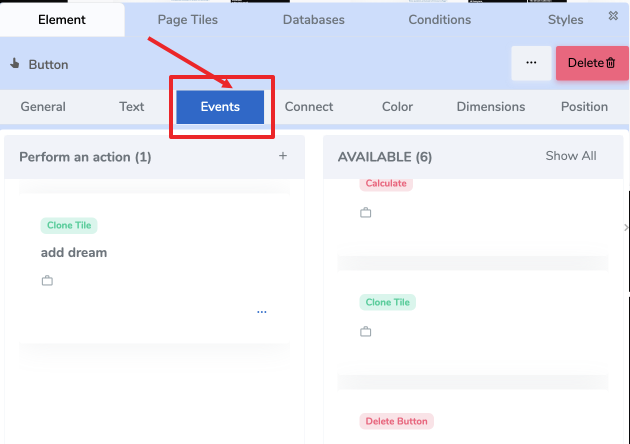
The Events Tab in ACENji’s Floating Design Panel is where you define dynamic behaviors for any element — without writing a single line of code.
Using the Events Tab, you can configure actions such as opening URLs, performing calculations, changing styles, linking to cards, cloning tiles, or deleting elements, triggered by user interactions like clicks, hovers, or page events.
🧭 Where to Find It
- Select any element on your ACENji page (e.g., a tile, button, card, or image).
- Open the Floating Design Panel on the right.
- Navigate to Element Section → Events Tab.
This will display a list of all event types you can attach to the selected element.
✨ Why Use Events
Events let you turn static UI elements into interactive components that respond to user behavior:
- 🔢 Calculate values and variables in real time
- 🌐 Open URLs inside the same or new tabs
- 🧭 Navigate between cards in your app
- 🎨 Change element styles dynamically
- 🧱 Clone or delete tiles to modify layouts live
- 🔁 Chain multiple actions together on a single trigger
All configuration is done visually through simple forms—no custom JavaScript is required.
📚 Event Types Overview
The following event types are available under this section:
- Calculate — Perform math or variable operations on event trigger.
- Card Link — Navigate to another card within your app.
- Change Style — Dynamically change the style of elements when events occur.
- Clone Tile — Duplicate tiles dynamically.
- Delete Button — Delete specific tiles or elements.
- Open URL — Open external or internal links.
🧠 Pro Tip
You can attach multiple events to the same element. For example:
A button click can calculate a score, change its background color, and navigate to a results card, all in a single interaction.
This allows for sophisticated UI behavior without complexity.
🧪 Testing Events
- Use Preview Mode in the Floating Design Panel to test actions in real time.
- Event changes are saved immediately—no need to republish the app for every tweak.
- If an event doesn’t fire, check the trigger type and ensure the correct target element is selected.
🔗 Next Steps
Explore the individual event type pages for step-by-step configuration:
📬 Need Help?
- Open a support ticket from your ACENji admin panel
- Or reach us via ACENji.com
✅ That’s it!
Your element can now respond to user interactions dynamically — making your ACENji app feel like a fully interactive application.