
Text Input Element
Text input elements can be used in both forms and cards. Users are familiar with the so-called 'text boxes' and how data is entered into them. This element is used to collect user input, such as text or numbers. It's important to make sure that the element is easy to locate and use, with clear labels or instructions. You can also add options to customize the size and appearance of the element, such as border color or background color, to match the design of the page.
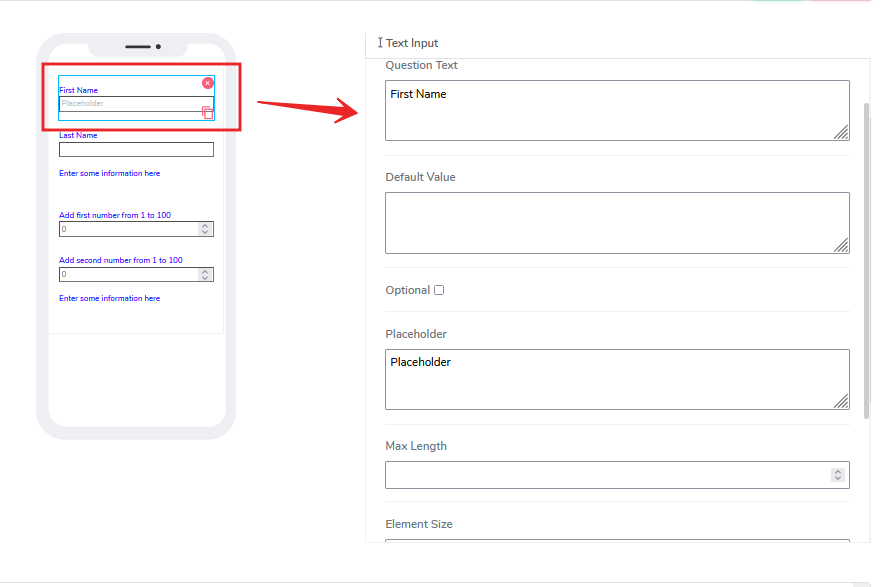
It has the following attributes:
- Question Text: This is a freeform, multiline text field that is read-only. It indicates to the end-user what information they need to input.
- Default Value: This is an optional attribute that can be set at design time or at run time via the calculated field function (see below).
- Optional: This indicates whether the element is mandatory or not. By default, this is not selected and the element is mandatory.
- Placeholder: This provides a hint for the expected input value. If left blank, nothing will be displayed.
- Max Length: This allows the user to put restrictions on the maximum number of characters that can be input.
- Element Size: This field is empty by default. Users can add a numerical value in pixels to indicate the size of the text input box on the canvas. The lower the size, the more lines are allocated to the text to define that size.
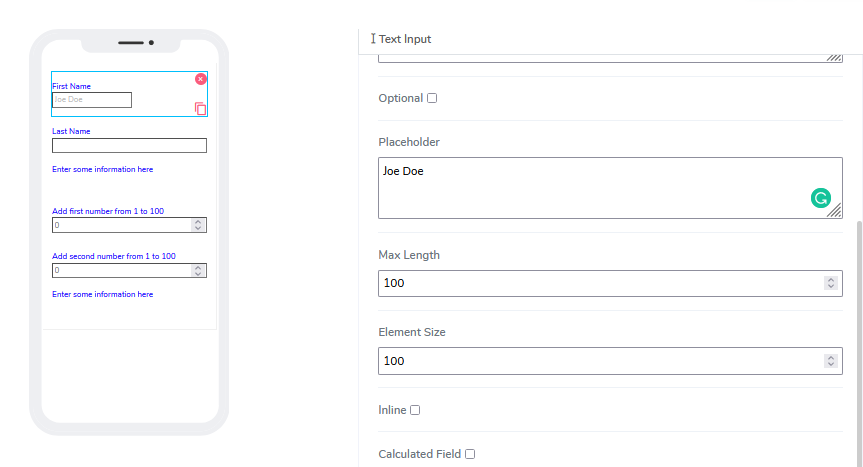
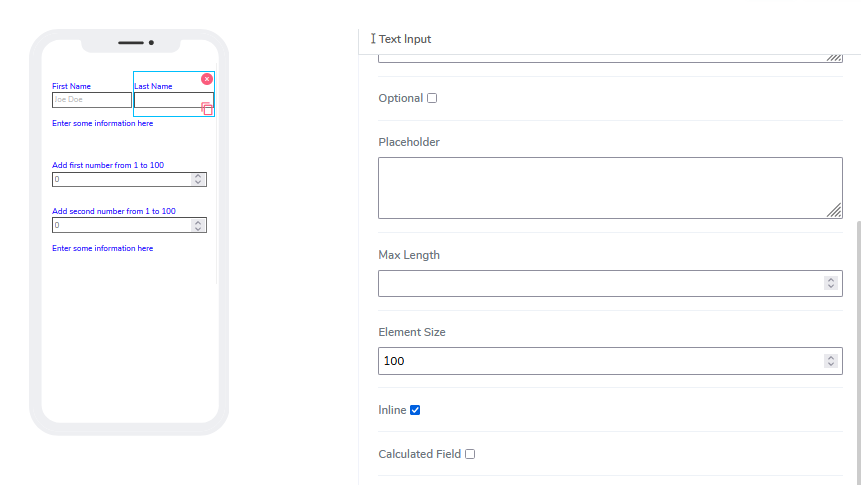
Inline - If 'Inline' is selected, the element will be attached to the previous element on the canvas. If there isn't enough space to attach it to the previous element, it will be positioned at the beginning of the row where it's located and the next element can be attached to it.
Calculated Field - By default, this option is not selected. If the user chooses to select this option, the following image will appear:
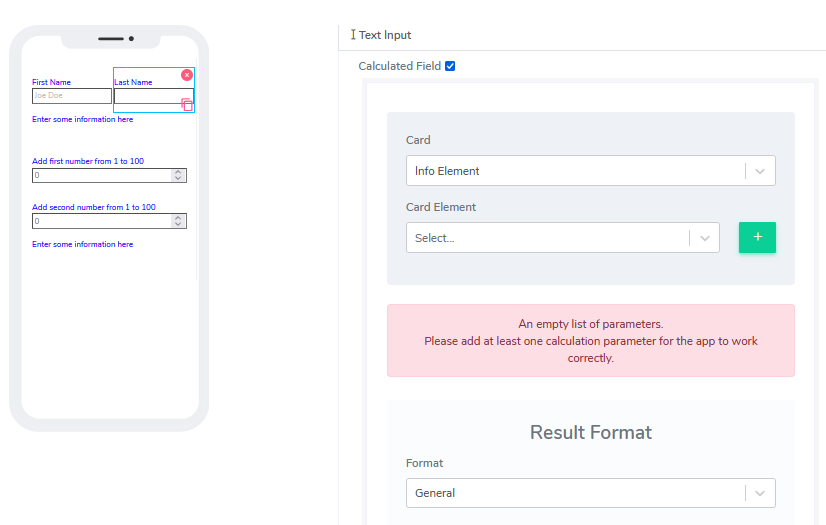
Calculating fields for text elements works the same way as it does for Info element.
Questions?
If you have any questions, please don't hesitate to contact us.
Alternatively, you can submit an issue on this platform.
Useful Links:
What is the Info Element? - https://help.acenji.com/#/./elements/info/index
What is the Button Element - https://help.acenji.com/#/./elements/button/index
Learn about the Numeric Input Element - https://help.acenji.com/#/./elements/numeric-input/index