
Image Element
An image element is used to display images on a web page. Image elements can be used for both Forms and Cards. Currently, images are sourced from either a public URL or uploaded locally to the image library. It's important to make sure that the images are high-quality and optimized for web display, with a file size that's not too large. You can also add options to customize the size and appearance of the image element, such as width, height, and border.
You can upload images directly to your Acenji App to make the image selection process faster and easier. This also means you won't have to use another website to host your images.
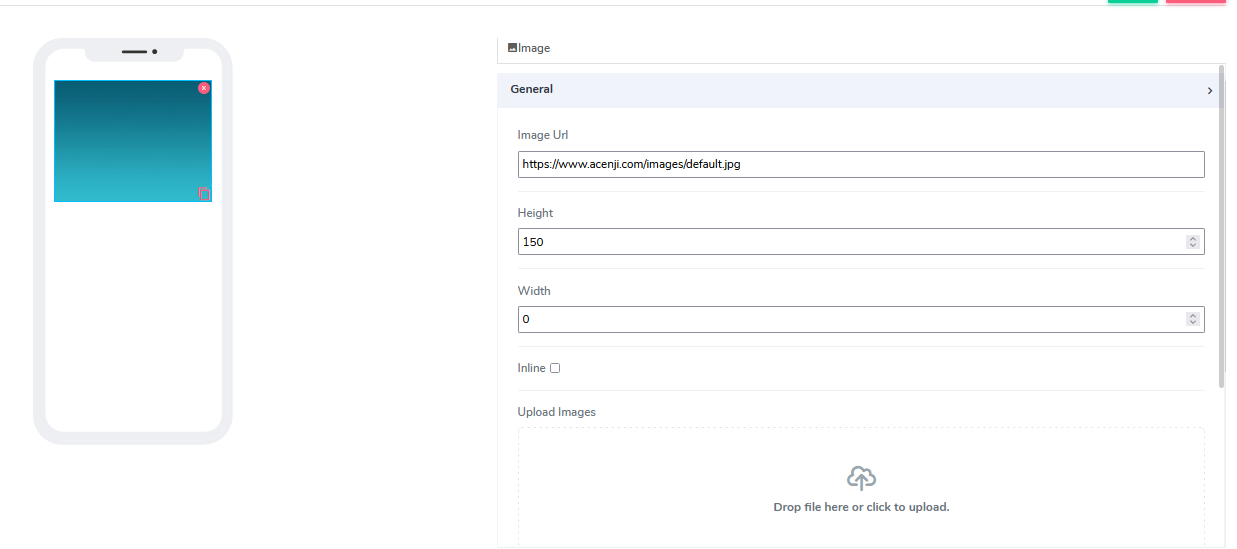
It comes with the following attributes:
Image URL: If the user is using a public image via URL, they can place the URL here. If a user uploads the image via a file, a URL will be generated for them.
Height: This field is empty by default. Users can add a numerical value here to indicate the height of the image in pixels.
Width: This field is empty by default. Users can add a numerical value here to indicate the width of the image in pixels.
Inline: This is a handy feature where, if selected, the element gets glued to the previous element on the canvas. If there is no space to be added to the previous element, it positions itself with its own dimensions at the beginning of the canvas on the row where it is located, and the next element can be glued to it.
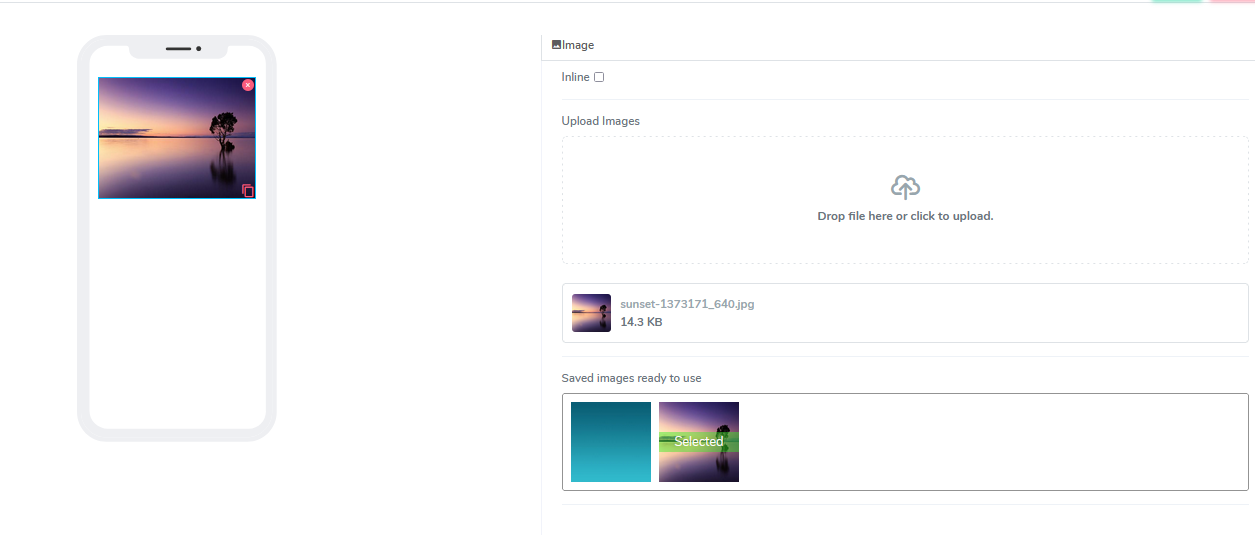
Upload Image: In case the user wants to use an internal, non-URL sourced image, the system allows for image upload. They can drag an image file or browse and upload one. The user sees all selected media files for the current project that are available and can select the desired one by clicking on the image from the media library. This automatically creates a public URL in the URL field.
Questions?
If you have any questions, please don't hesitate to contact us.
Alternatively, you can submit an issue on this platform.
Useful Links:
What is the Info Element? - https://help.acenji.com/#/./elements/info/index
Using the Multiple Selection Group Element - https://help.acenji.com/#/./elements/multiple-selection-group/index
Learn about the Numeric Input Element - https://help.acenji.com/#/./elements/numeric-input/index