
Dropdown Element
The Dropdown Element with Cascade Dropdown allows you to create dropdown menus that are linked to each other in a hierarchical manner, where the options available in each dropdown are dependent on the selection made in the previous dropdown. Dropdown elements can be used for both Forms and Cards. For Cards, they have richer attributes and more functionalities. In the simplest way, a dropdown gives the user the ability to select a value from a set of values.
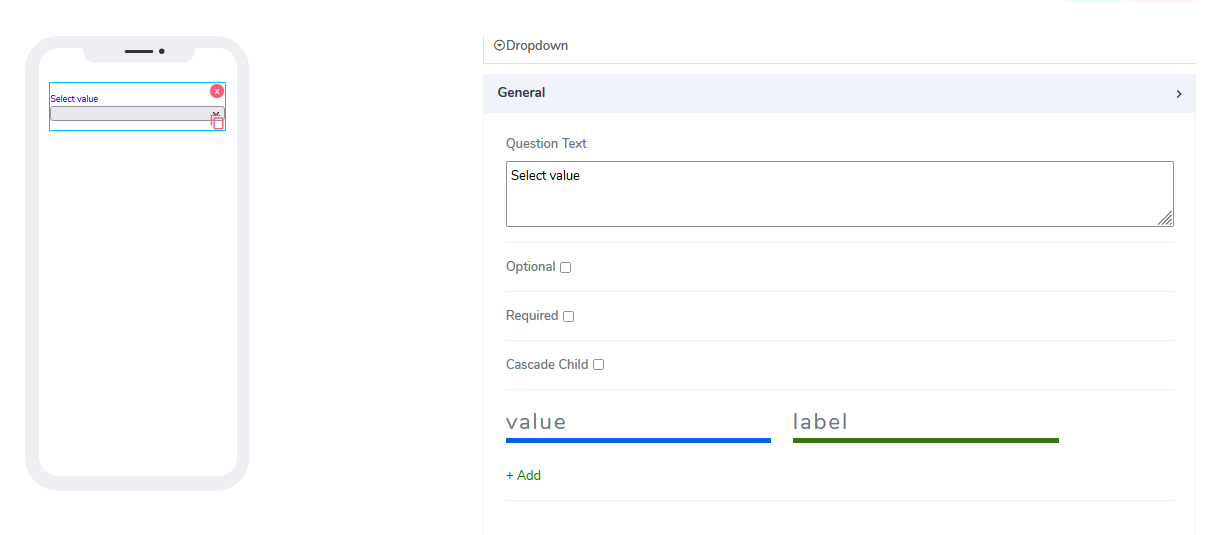
It comes with the following attributes:
Question Text: Freestyle, multiline text. The text field is read-only. The text indicates to the end-user what action will follow if they select an option.
Optional: Indicates if this element is mandatory to be filled in at run time. By default, this is not selected and therefore the element is not mandatory.
Required: Indicates if this element is mandatory to be filled in at run time. By default, this is not selected and therefore the element is not mandatory.
Cascade Child: Provides the ability to implement infinite cascaded dropdown selections, where the parent selection defines what the child selection is. A normal cascaded dropdown set is a set of dropdown menus that are connected in a hierarchical manner, where the selection in one dropdown menu determines the options available in the next dropdown menu.
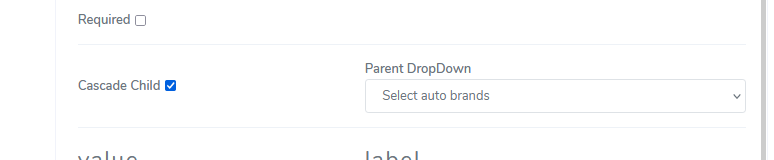
- Add Value and Label: Provides the ability to preload the values for the dropdown and their labels, and images if available.
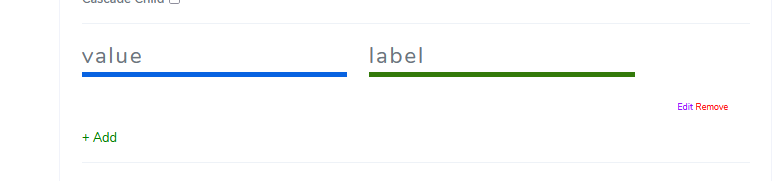
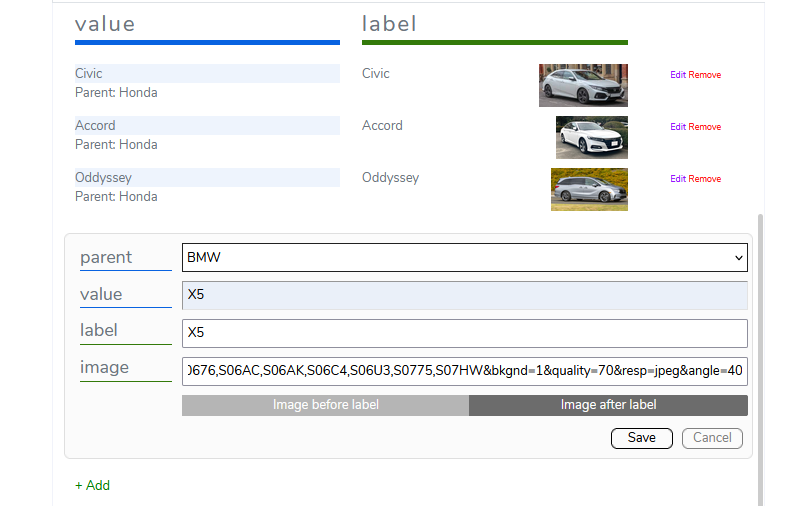
Click Edit and that opens a simple form that gives the user the ability to finalize the choice for value, label, and an image (this is optional).
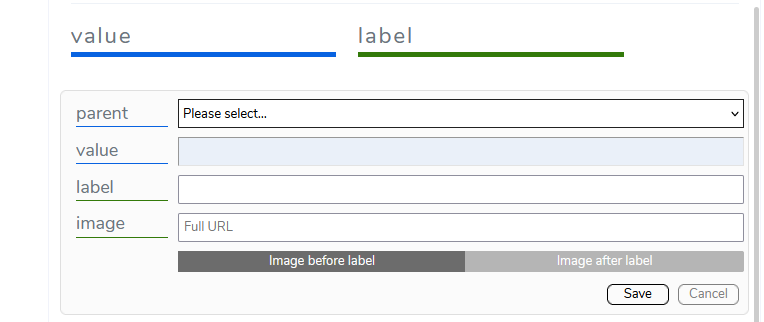
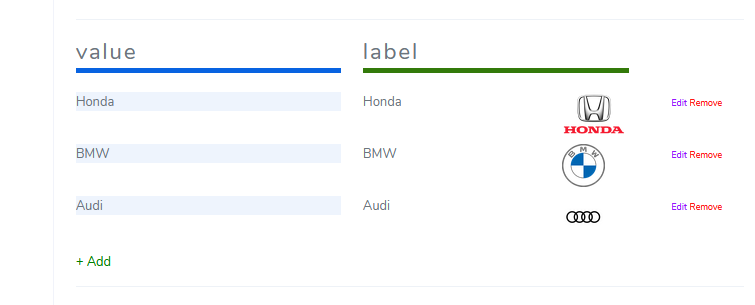
Let's dive into the cascaded dropdown option by populating the second dropdown.
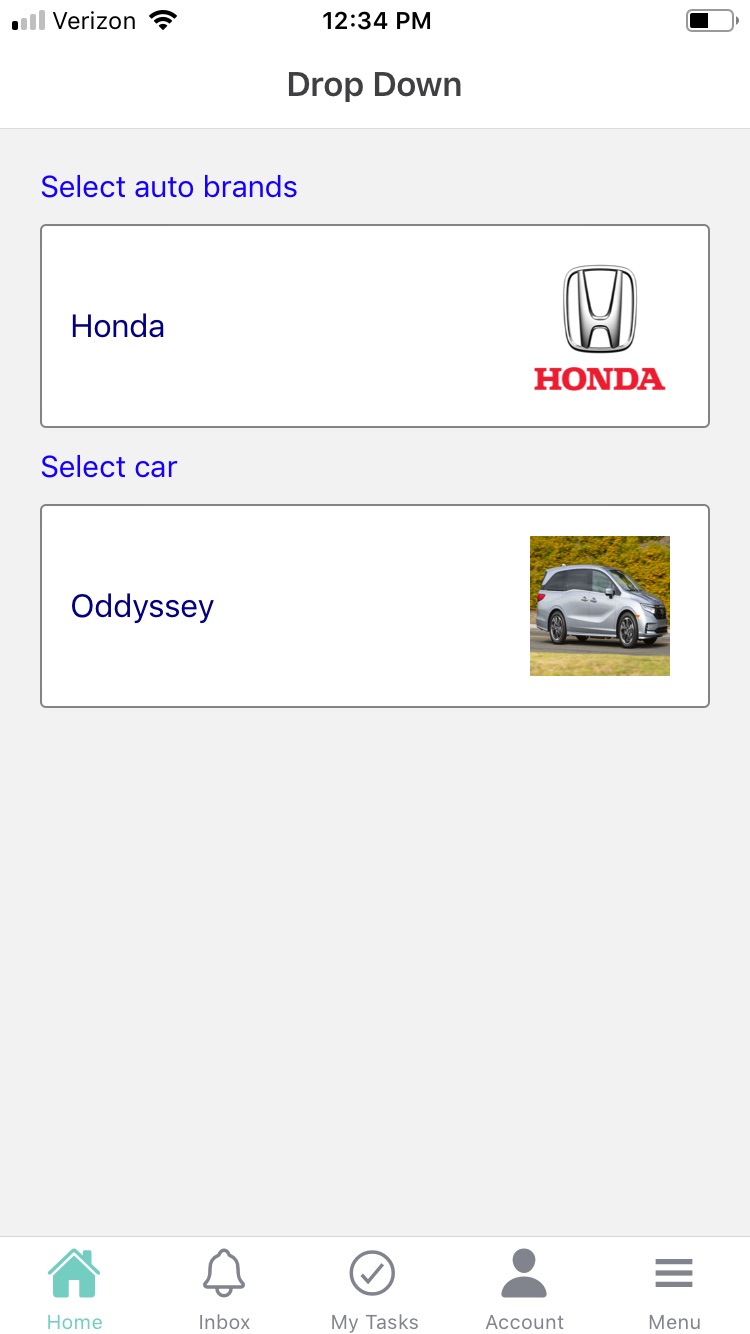
In the example, we will populate all three car brands - Honda, BMW, and Audi - with some models.
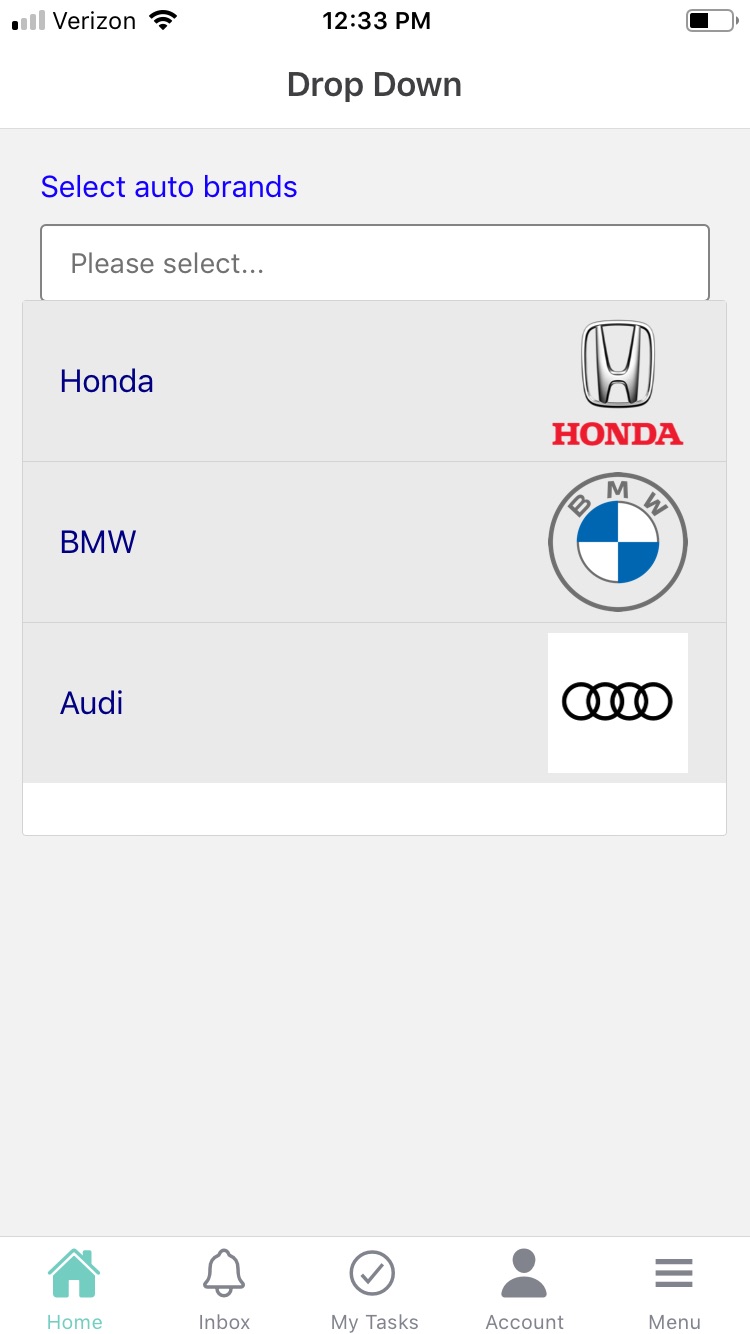
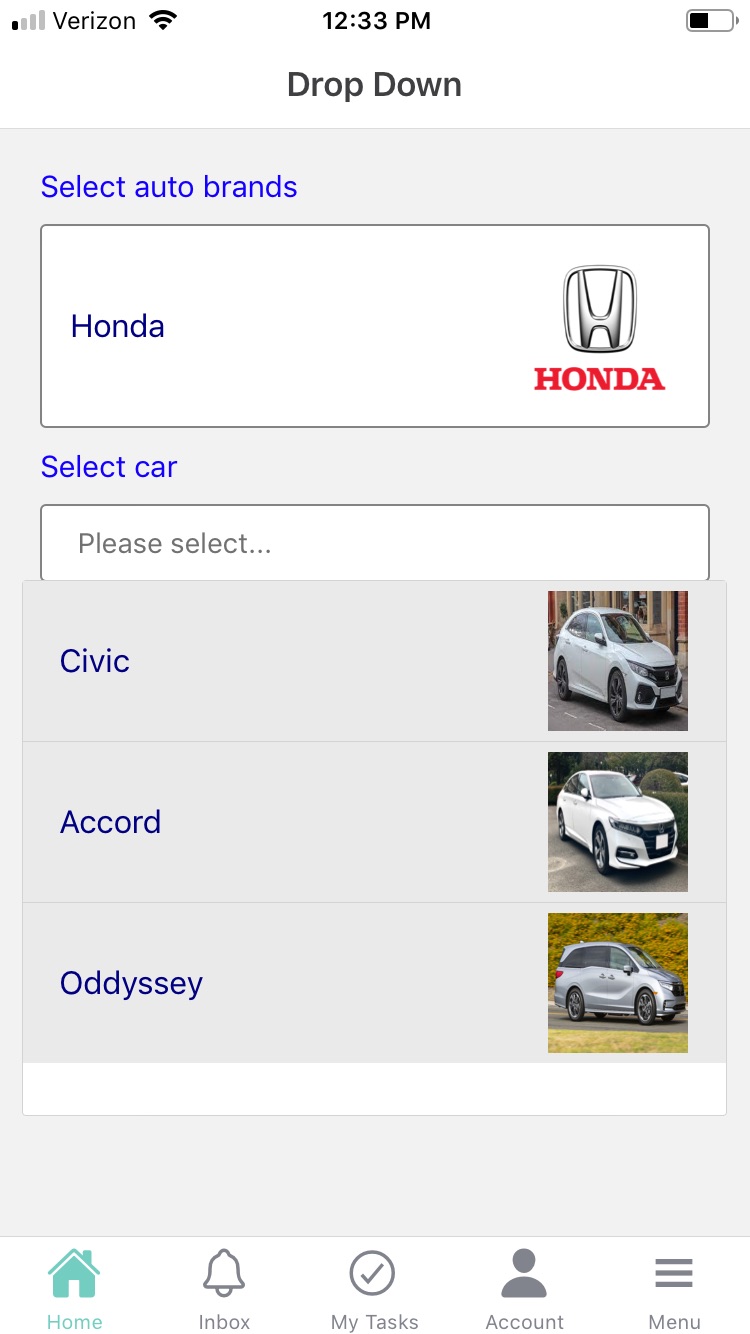
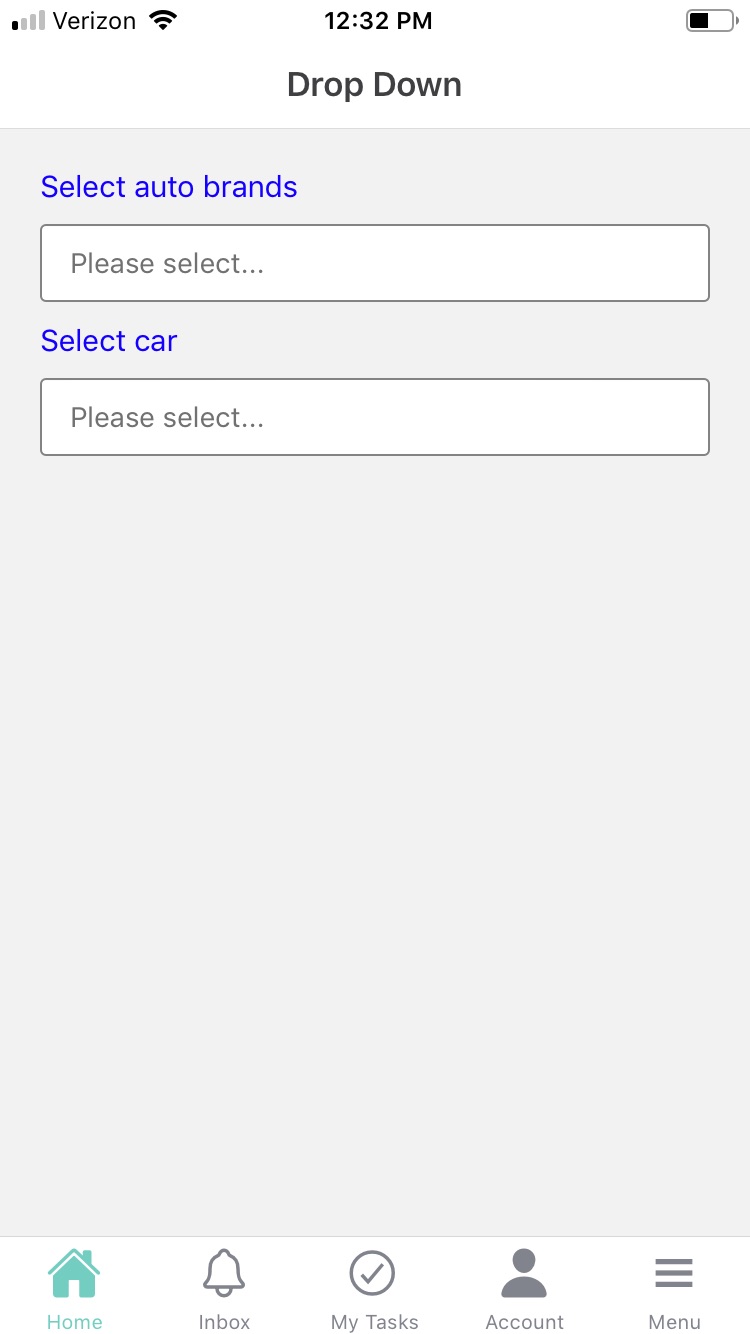
TThe actual mobile app looks similar to a normal cascaded dropdown set.
When using Dropdown elements in Acenji, keep these tips in mind:
The dropdown element allows you to select from a list of options presented in a dropdown menu. To use the dropdown, simply click on the dropdown box and select the option you want from the list. The options available in each dropdown will be clearly labeled and easy to understand. If you're not sure how to use the dropdown, there may be tooltips or a user guide available to help you get started.
If there are multiple dropdowns on the page, they may be organized in a hierarchical order, with the options in one dropdown affecting the options available in another. Make sure to follow the dropdown hierarchy and select the appropriate options to ensure that you get the desired results. If you're using a form to order something, for example, you might first select the type of item you want, then choose the size or other attributes, and finally select any additional options or toppings.
Be aware that some dropdowns may have limitations on the number of options available, or the format of the input that is accepted. If you encounter any issues, refer to the instructions or contact customer support for assistance.
Questions?
If you have any questions, please don't hesitate to contact us.
Alternatively, you can submit an issue on this platform.
Useful Links:
Using the Slider Element - https://help.acenji.com/#/./elements/slider/index
Using the Signature Element - https://help.acenji.com/#/./elements/signature/index
Learn about the Filter Grid Element - https://help.acenji.com/#/./elements/filter-grid/index