
Date Element
The Date element is used to allow users to select a date. Date elements can be used for both Forms and Cards. Users are very much familiar with so-called "check boxes" and how dates are selected or deselected. The date picker is designed to accommodate a variety of date formats. Any specific formatting requirements are clearly communicated and you can also add options to customize the appearance of the element, such as changing the size or color of the date element.
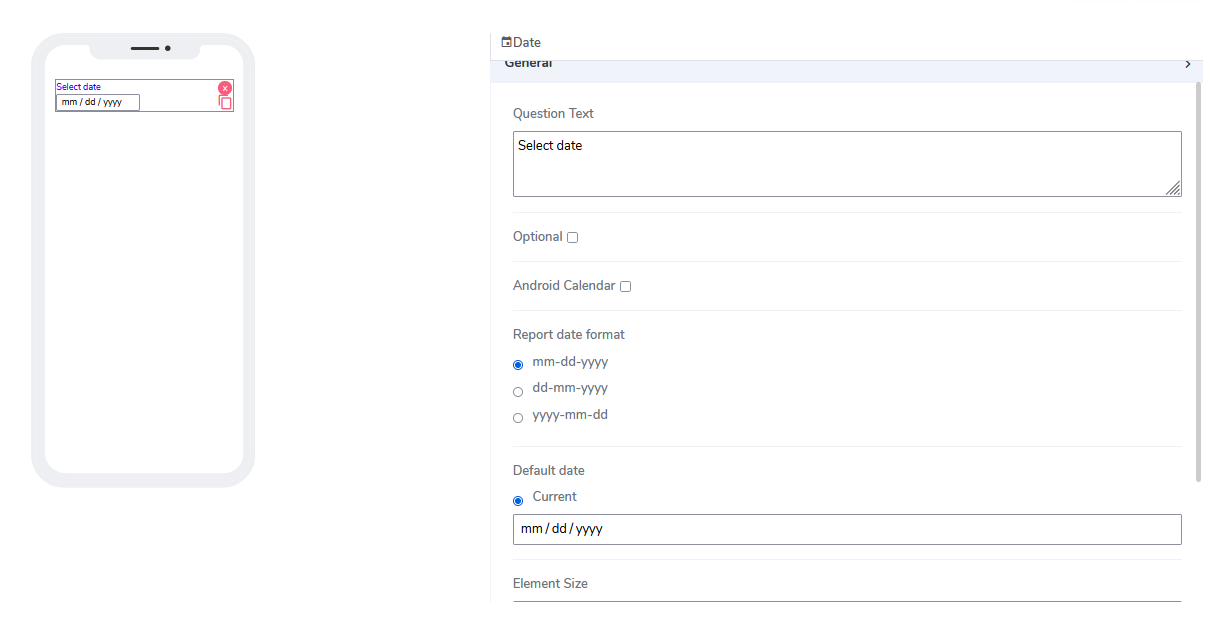
It comes with the following attributes
Question Text: Freestyle, multiline text. The text field is read-only and indicates to the end-user what information they need to input.
Optional: Indicates if this element is mandatory to be filled in at runtime. By default, this is not selected and therefore the element is optional.
Android Calendar: An additional style date calendar.
Report Date Format: Users can choose from three calendar date formats: mm-dd-yyyy, dd-mm-yyyy, and yy-mm-dd.
Default Date: By default, this attribute selects the current date. Users can overwrite it using mm/dd/yyyy as the input value.
Element Size: This field is empty by default. Users can add a numerical value here to indicate in pixels the size of the info message. The lower the size, the more lines are allocated to the text to define that size as a box on the canvas.
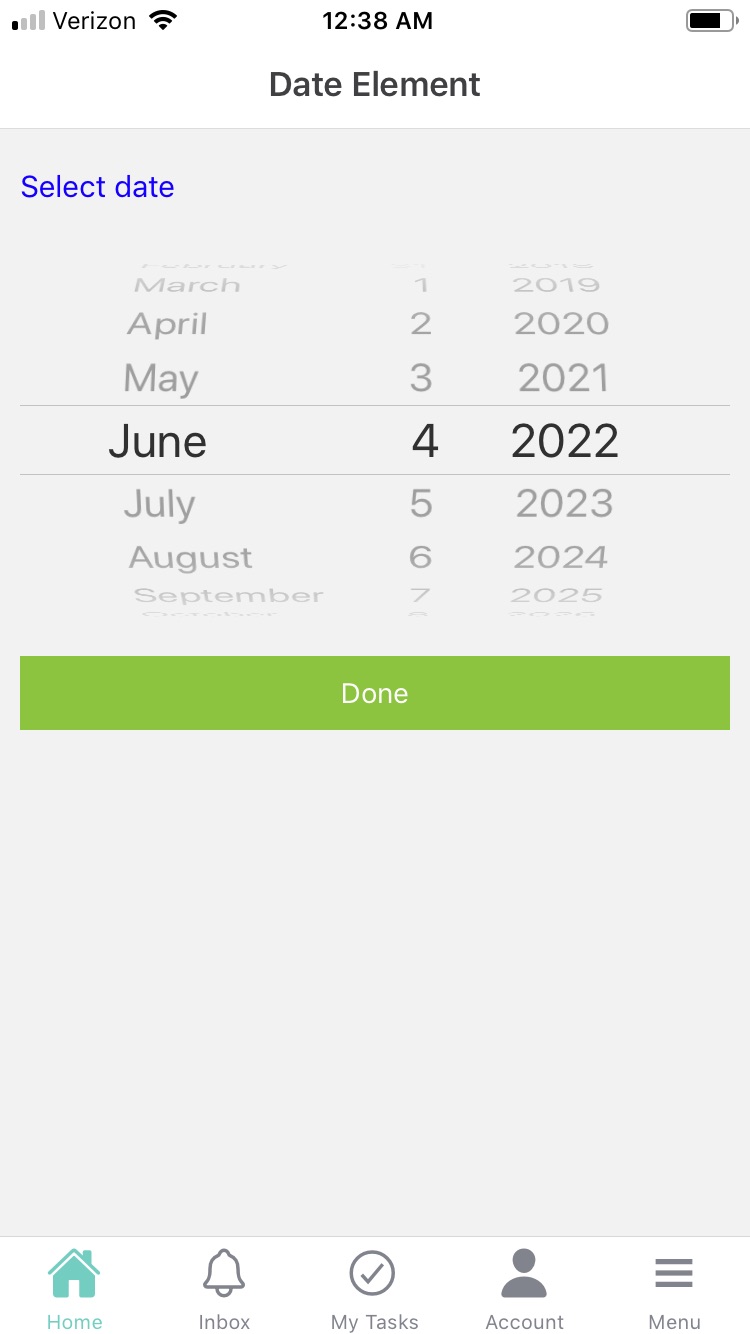
When using Date elements in Acenji, keep these tips in mind:
Look for clear instructions on how to format the date. If there aren't any, ask for clarification or look for an example date to follow.
Use the input mask provided, or other cues like placeholder text or on-screen prompts, to help you enter the date correctly. This can prevent mistakes and save you time.
If the date field already has a default value filled in, check if it's the correct date for your purposes. You may need to change it to a different date if needed.
Questions?
If you have any questions, please don't hesitate to contact us.
Alternatively, you can submit an issue on this platform.
Useful Links:
What is the Info Element? - https://help.acenji.com/#/./elements/info/index
Using the Single Selection Group Element - https://help.acenji.com/#/./elements/single-selection-group/index
Learn about the Multiple Selection Group Element - https://help.acenji.com/#/./elements/multiple-selection-group/index