
Camera Element
The camera element is used to allow users to capture visual data using their device's camera. Camera elements can be used for both Forms and Cards. Users can take multiple images or short videos. The element is designed to accommodate a variety of device types and camera resolutions and any specific device requirements are clearly communicated. You can also add options to customize the appearance of the element, such as changing the size or color of the camera viewfinder.
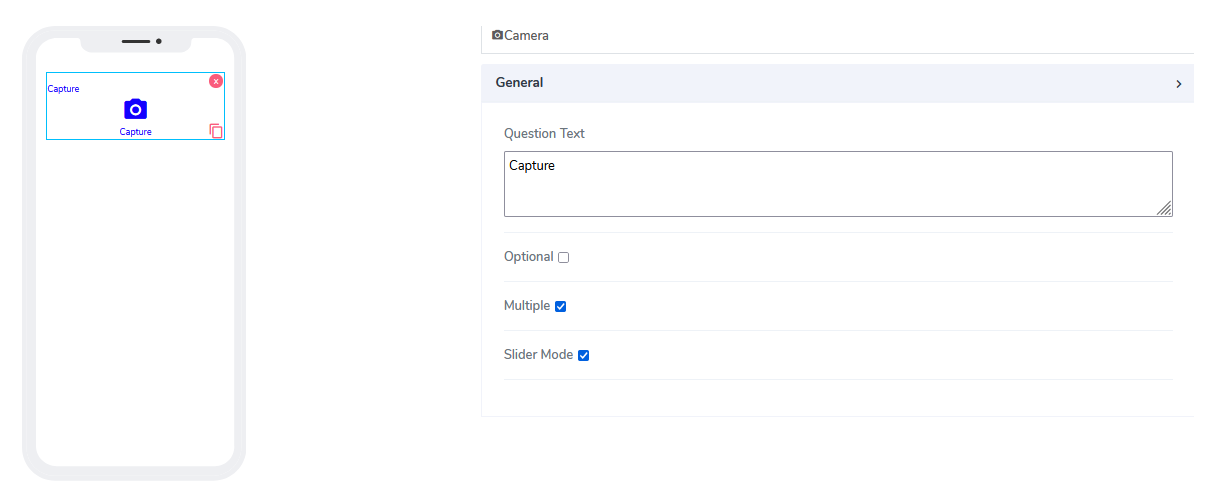
It comes with the following attributes
Question Text: Freestyle, multiline text. The text field is read-only and indicates to the end-user what action will follow if they press the button.
Optional: Indicates if this element is mandatory to be filled in at run time. By default, this is not selected, and therefore the element is optional.
Multiple: By default, it is selected, indicating that multiple pictures or videos can be taken.
Slider Mode: By default, it is selected, indicating that images/videos appear in a single box, and the user can navigate left and right to see others.
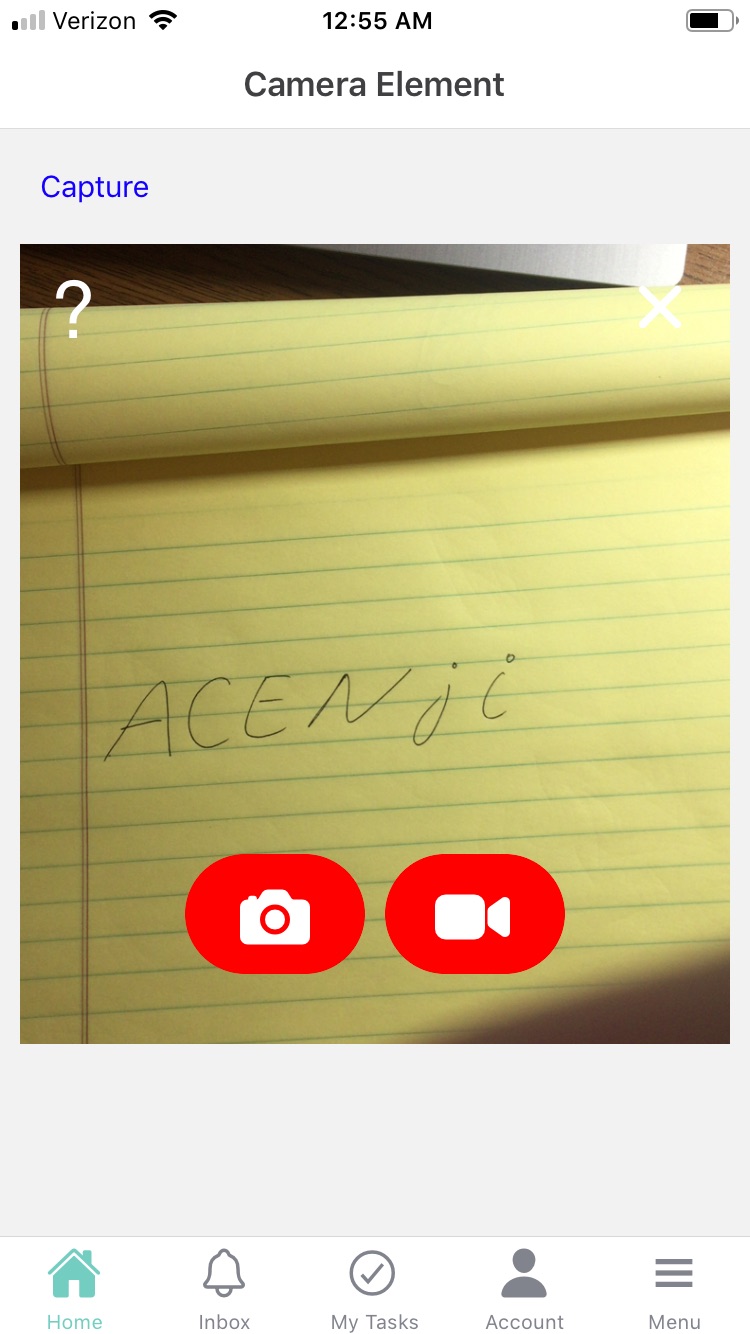
Access to the Camera: Images and videos are stored with a fully accessible static URL that is provided later in reports. Video lengths are limited to 15 seconds.
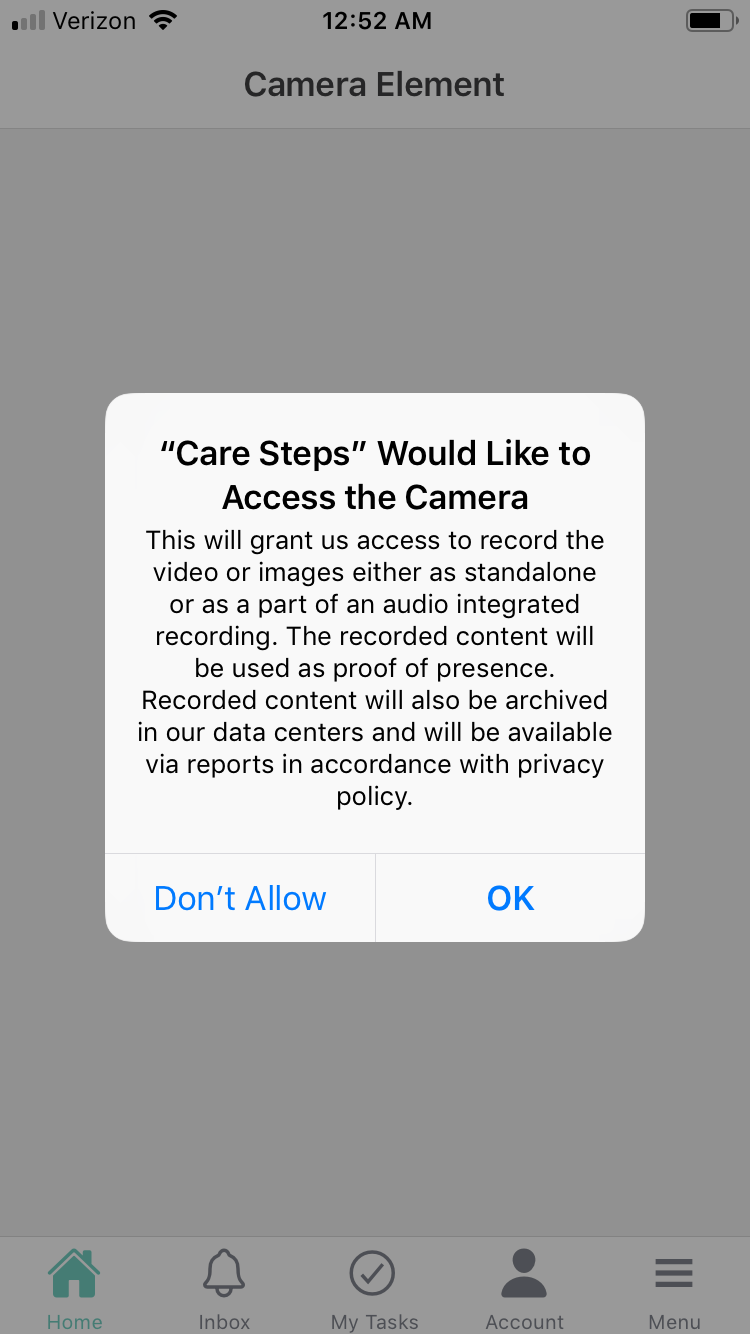
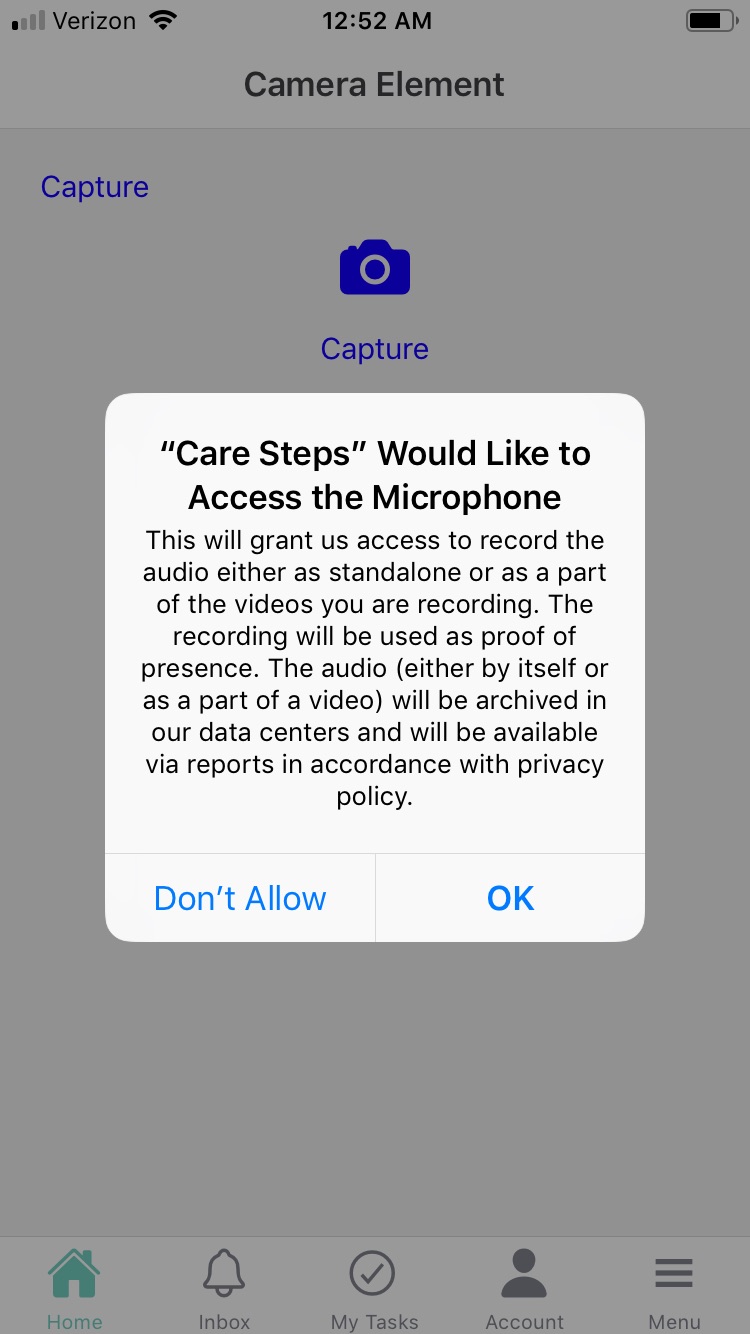
When the app is opened, the user is presented with two requests: one for access to the camera and the second for the microphone.
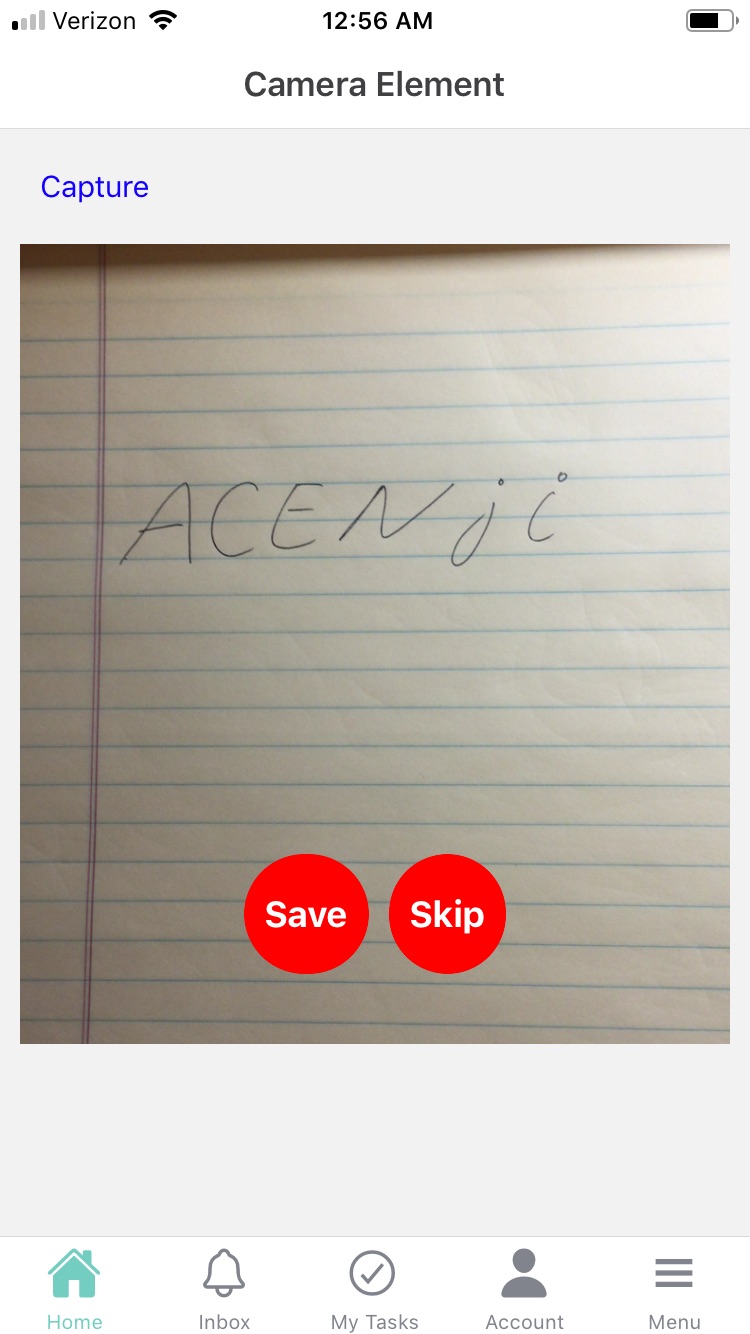
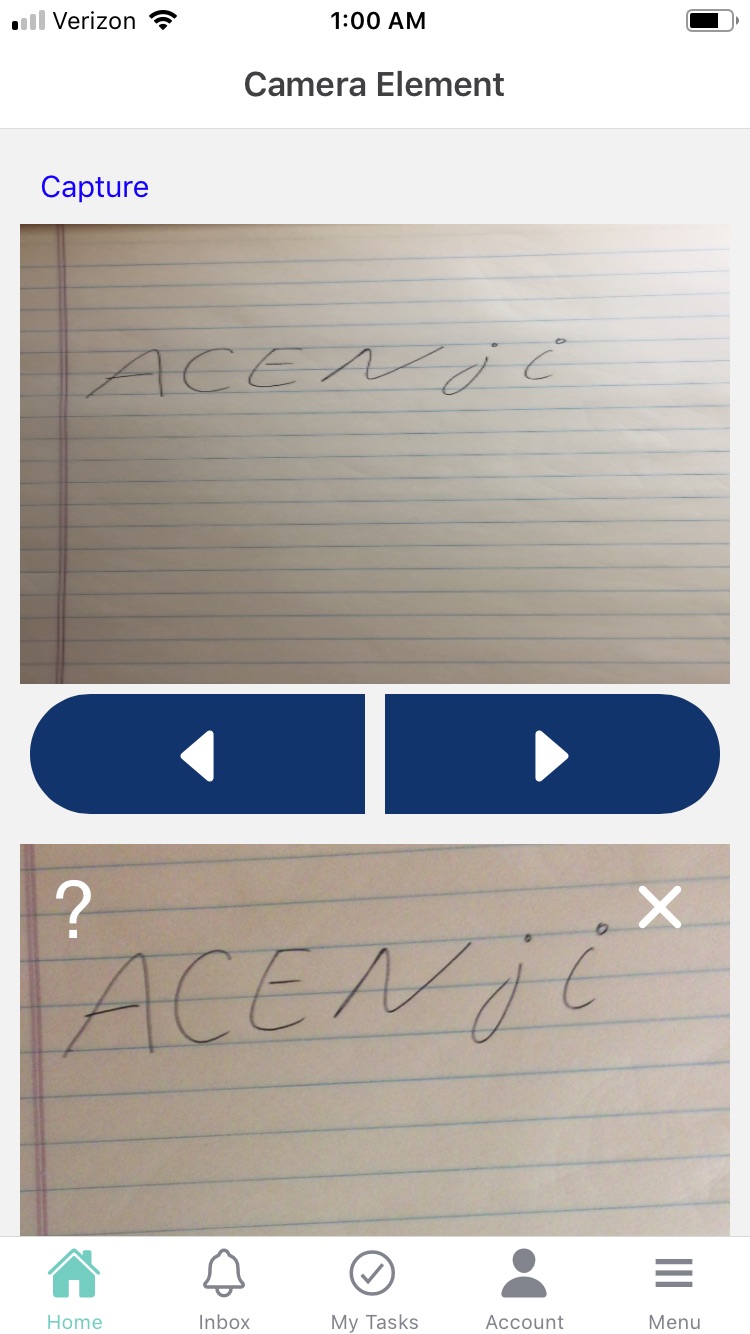
When using Camera elements in Acenji, keep these tips in mind:
When using the camera element, make sure to follow the provided instructions on how to capture the desired visual data. This may include adjusting the camera focus or framing the shot correctly.
If available, take advantage of any preview or editing options to ensure the captured visual data is accurate and of high quality. This can help to reduce errors and improve your experience with the camera element.
Questions?
If you have any questions, please don't hesitate to contact us.
Alternatively, you can submit an issue on this platform.
Useful Links:
What is the Info Element? - https://help.acenji.com/#/./elements/info/index
Using the Single Selection Group Element - https://help.acenji.com/#/./elements/single-selection-group/index
Learn about the Multiple Selection Group Element - https://help.acenji.com/#/./elements/multiple-selection-group/index